
Word to PDF Converter
Convert your Word (.docx) documents into secure PDF format instantly in your browser.
📁 Drag & Drop your Word file (.docx) here or
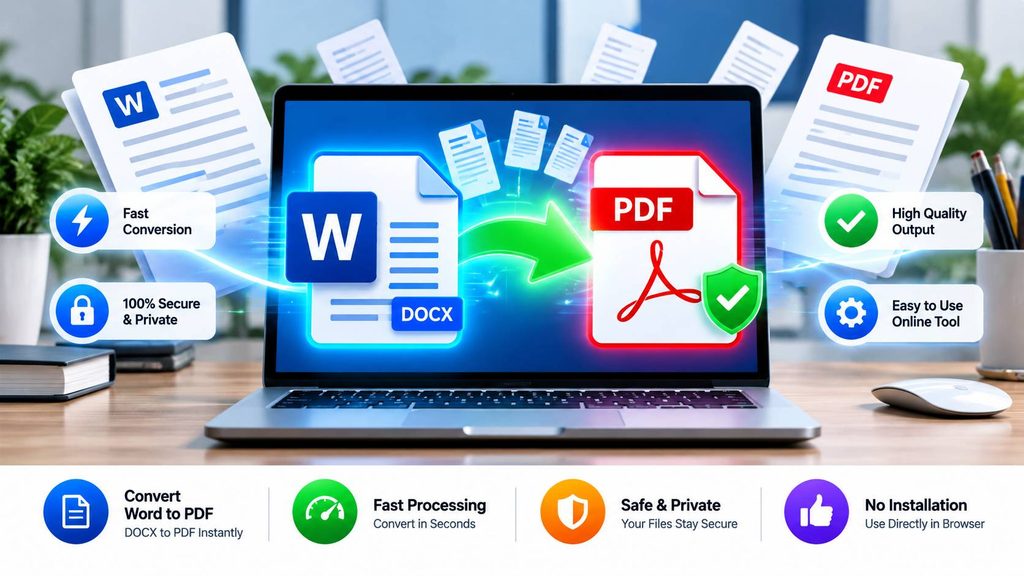
100% Free Word to PDF Converter Online – Convert DOCX to PDF
Anyone who has emailed a Word document and later heard “it looks strange on my screen” knows the frustration. Fonts get swapped, images drift, tables break across pages, and a carefully formatted resume turns into a mess. The easiest fix is to share a PDF instead. With a dependable Free Word to PDF Converter, you can turn any DOCX file into a clean, professional PDF in seconds, without installing software or creating an account.
PDF is the most trusted format for sharing finished documents. It locks in your layout, works on every device, and is accepted by schools, employers, government offices, and clients worldwide. In this guide, you will learn what a Free Word to PDF Converter does, the features that make a good one, how to use it step by step, why the PDF format benefits students and professionals, how to solve common conversion problems, and whether online conversion is safe.
What Is a Word to PDF Converter?
A Word to PDF converter is an online tool that changes Microsoft Word files (DOC and DOCX) into Portable Document Format (PDF) files. Word documents are built to be edited, which means their appearance depends on the software, fonts, and settings of the device opening them. PDFs are built to be viewed, so they look exactly the same everywhere.
When you convert a document using a quality Free Word to PDF Converter, the tool reads everything inside it: text, fonts, images, tables, headers, footers, page numbers, and margins. It then packages those elements into a fixed-layout file. The result has several practical advantages:
- It looks identical on Windows, macOS, Android, and iOS devices
- It reduces the risk of accidental edits by recipients
- It is accepted almost universally for printing, submission, and archiving
- It usually produces a file size that is easy to email or upload
Because an online converter runs in your browser, you do not need Microsoft Word, Adobe software, or any desktop application. All you need is a device with an internet connection and your document.
Key Features of Aanamil Word to PDF Converter
A good Word to PDF converter should be quick, accurate, safe, and simple. Here are the features that define the Aanamil Free Word to PDF Converter tool.
Fast Conversion
When a deadline is close, waiting around is not an option. The tool converts Word documents into PDF format in seconds, whether your file is a single page or a long report. You upload the file, start the process, and your PDF is ready almost immediately.
High-Quality Output
A conversion is only useful if your document survives it intact. The converter is built to maintain the integrity of your text, formatting, and layout, including:
- Fonts, text styles, and line spacing
- Images and graphics in their original positions
- Tables, borders, and cell alignment
- Bulleted and numbered lists
- Headers, footers, and page numbers
- Page margins and overall structure
Your resume, thesis, invoice, or contract keeps the polished look you designed.
100% Secure and Private
Word documents often contain personal details, business information, or academic work. Files are processed securely with strict privacy safeguards, so you can convert everyday documents with confidence.
Easy to Use Online Tool
The interface is deliberately simple. There are no hidden settings, confusing menus, or technical steps to learn. If you can select a file and click a button, you can convert a document using a reliable Free Word to PDF Converter. That makes the tool suitable for first-time users, students, and busy professionals alike.
No Installation Required
Everything works directly inside your web browser. You do not need to download an application, add a plugin, or use up storage space. It runs on any compatible browser, so you can convert files from a laptop, tablet, or smartphone.
Instant DOCX to PDF Support
The tool fully supports the modern DOCX format and quickly transforms Word files into professional PDF documents. From a one-page letter to a multi-chapter report with images and tables, the process stays the same: upload, convert, download.
How to Convert Word to PDF Online
Converting a document takes less than a minute. Follow these steps:
- Open the converter: Visit the Free Word to PDF Converter tool in any modern web browser on your computer, tablet, or phone.
- Upload your Word file: Click the upload button and select your DOC or DOCX file, or drag and drop it into the upload area.
- Start the conversion: Click the convert button. The tool processes your document within a few seconds.
- Download your PDF: When the conversion is complete, download the PDF to your device.
- Review the result: Open the PDF and scroll through it to confirm that the fonts, images, tables, and page breaks look correct.
Helpful tip: Finalize your document before converting. Proofread the text, update the table of contents, check page numbers, and confirm that images are placed correctly. This saves you from repeating the process.
Why Convert DOCX to PDF?
Converting to PDF using a standard Word to PDF converter is a standard step in modern document workflows. The benefits depend on how you work.
Benefits for Students
- Reliable assignment submission: Many teachers and universities require PDFs so that formatting stays intact on their systems.
- Protected formatting: Citations, footnotes, equations, and diagrams will not shift when someone else opens your file.
- Simple sharing: PDFs are easy to upload to learning portals, attach to emails, or share with classmates for group projects.
Benefits for Office Workers
- Consistent business documents: Reports, proposals, invoices, and memos look uniform on every computer and mobile device.
- Easier distribution: PDFs are convenient to attach to emails and upload to company systems.
- Fewer accidental changes: Colleagues can read and review the document without altering your content by mistake.
Benefits for Professionals and Freelancers
- A strong first impression: Portfolios, quotes, contracts, and resumes arrive looking exactly as designed.
- Broad compatibility: Clients do not need Microsoft Word to open your files.
- Dependable printing: What you see on screen matches what comes out of the printer.
Common Word to PDF Conversion Problems & Solutions
Most conversions work without any trouble, but occasionally an issue appears. Here are the most frequent ones and how to fix them.
Fonts Look Different in the PDF
Cause: The document uses a rare or custom font that is not available during conversion.
Solution: Switch to a widely supported font such as Arial, Calibri, or Times New Roman, or embed fonts in your Word file before converting.
Images Are Missing or Misplaced
Cause: Floating images with complex text wrapping can move during conversion.
Solution: Change the image layout to “In Line with Text” or anchor it to a fixed position, then convert again.
Page Breaks Fall in the Wrong Place
Cause: Differences in page size, margins, or hidden formatting marks.
Solution: Confirm your page setup (A4 or Letter), adjust margins, and insert manual page breaks where needed.
The PDF File Is Too Large
Cause: High-resolution images or embedded media increase file size.
Solution: Compress the images inside Word before converting, or remove graphics you do not need.
Upload Fails or Takes Too Long
Cause: An unstable internet connection, or a very large or corrupted file.
Solution: Check your connection, try another browser, and make sure the file opens normally in Word. If it still fails, save a fresh copy and upload that version.
Password-Protected Files Will Not Convert
Cause: Locked documents cannot be read by the converter.
Solution: Remove the password in Word, convert the file, and then add protection to the PDF if needed.
Is Online Word to PDF Conversion Safe?
Since you are uploading a file to a website, it is smart to ask this question. Online conversion can be safe when the service follows sound security and privacy practices. When choosing any Free Word to PDF Converter, look for the following:
- A secure connection: The website should use HTTPS so your upload is encrypted in transit.
- Clear privacy practices: A trustworthy tool processes files securely and does not misuse your content.
- No unnecessary sign-ups: You should not need to hand over personal details just to convert a file.
- Responsible file handling: Reputable services limit how long files are kept during processing.
As a general rule, avoid uploading documents that contain highly sensitive data such as passwords, banking credentials, or government ID numbers to any online service. For everyday files like resumes, assignments, reports, and letters, a secure online converter is a convenient and practical choice.
Using a reliable Free Word to PDF Converter ensures that your important office files, study notes, and professional documents maintain their layout across all devices. Whether you are using a mobile browser or a desktop computer, a good Word to PDF converter saves time and eliminates formatting errors when sharing files online.
Frequently Asked Questions (FAQs)
Is the Word to PDF converter free to use?
Yes. You can convert Word documents to PDF online without paying for software or a subscription, which makes a Free Word to PDF Converter a good option for occasional and regular users alike.
Do I need to install any software?
No. The tool runs entirely in your browser. There is nothing to download, and it does not take up space on your device.
Will my formatting change after conversion?
The converter is designed to preserve your text, fonts, images, tables, and layout. For the best results, use standard fonts, review your document before uploading, and check the PDF once it is created.
Can I convert both DOC and DOCX files?
Yes. Both formats are supported, although DOCX generally gives the most accurate results because it is the modern Word standard.
Can I use the converter on my phone or tablet?
Yes. Since the tool works in the browser, you can use it on smartphones, tablets, and computers with any compatible browser.
How long does the conversion take?
Most documents convert in a few seconds. Larger files with many images may take slightly longer, depending on your internet speed.
Is there a file size limit?
Very large files may take longer to process or may be restricted. If you run into a limit, compress the images in your document and try again.
Can I edit the PDF after converting it?
PDFs are designed for fixed layouts, so editing options are limited. If you need to make changes, update the original Word file and convert it again.
Is my document kept private?
Files are processed securely with strict privacy safeguards. Even so, it is wise to avoid uploading extremely sensitive documents to any online tool.
Conclusion
Converting Word to PDF does not have to be complicated. With a fast, secure, browser-based Free Word to PDF Converter, you can turn any DOCX file into a polished PDF that looks the same wherever it is opened. You get quick processing, high-quality output, strong privacy practices, and no software to install. Whether you are a student submitting coursework, an office worker sharing a report, or a freelancer sending a contract, PDF conversion keeps your documents consistent, professional, and easy to share.
Use the step-by-step guide above, apply the troubleshooting tips when needed, and you will have a reliable workflow for every document you create. If you would like to compare options, you can also try the Adobe Acrobat online Word to PDF converter.