
Image to PDF
Convert multiple JPG, PNG, WEBP or HEIC images into a single professional PDF instantly in your browser.
📁 Drag & Drop your images here or
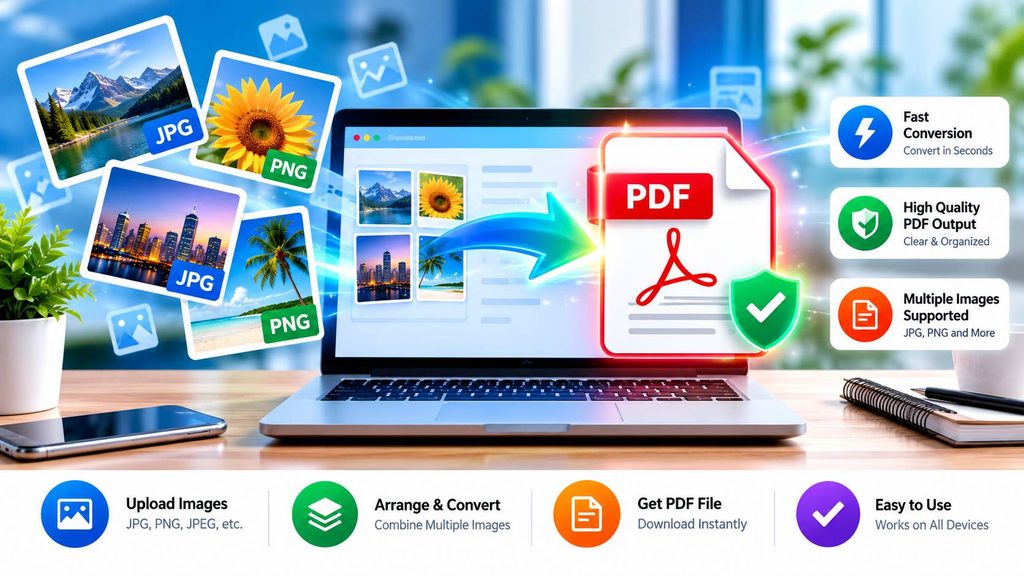
Image to PDF Converter: Convert Images to PDF Online for Free
Need to send several photos as one document? Our free image to PDF tool lets you convert images to PDF directly in your browser. Add your JPG, PNG, WEBP or HEIC pictures, put them in the right order, and download a single PDF in moments. There is nothing to install and no account to create.
It works well for scanned paperwork, receipts, handwritten notes, ID copies, certificates, screenshots or any set of pictures that belong together.
What Does an Image to PDF Tool Do?
An image to PDF tool places each picture on its own page and saves everything as one PDF file. The result opens the same way on phones, tablets and computers, keeps your pages in the order you chose, and is accepted by most websites, schools, employers and official portals around the world.
What You Can Do with This Tool
- Combine images into one PDF: Add up to 30 pictures to a single file.
- Use common formats: JPG, JPEG, PNG, WEBP, HEIC and HEIF are supported.
- Add photos from any device: Drag and drop on a computer, or tap to pick files on a phone or tablet.
- Arrange your pages: Move images up or down, or sort them by file name with Sort A–Z.
- Fix orientation: Rotate any image in 90-degree steps.
- Remove mistakes: Delete an image without starting over.
- Pick a page format: A4, US Letter, or Fit to image.
- Control the layout: Choose Auto, Portrait or Landscape orientation, and set no margin, a small margin or a big margin.
- Balance quality and size: Choose High quality, Balanced or Small file size.
- Name your file: Type your own PDF name before downloading.
How to Convert Images to PDF
- Select Choose Images or drop your pictures into the upload area.
- Review the thumbnail list and put the images in the right order.
- Rotate or remove anything that does not look right.
- Choose your page size, orientation, margin and quality.
- Enter a file name.
- Press Download PDF.
Forgot a page? Press Add More Images. Want to begin again? Press Choose Other Images.
JPG to PDF, PNG to PDF and WEBP to PDF
You do not need a different tool for each format. Whether you want JPG to PDF, PNG to PDF or WEBP to PDF, you can upload them together and even mix formats in the same document. Each picture becomes its own page, and the tool keeps the order you set in the preview list.
When Is a PDF Better Than a Bunch of Photos?
Submitting documents. Application forms often accept only one attachment, and a single PDF fits that rule.
Keeping the order. Photo viewers and chat apps can display pictures in a different sequence than the one you intended. A PDF locks your order in place.
Printing. A4 or Letter pages print predictably, without cropped edges or strange scaling.
Sharing with others. A PDF looks the same for the sender and the receiver, whatever device or operating system they use.
Keeping records. One tidy file is easier to store, find and back up than dozens of separate images.
Picking the Right Options
Page size: A4, US Letter or Fit to image
A4 is the standard paper size in most of the world, while US Letter is common in the United States and Canada. If you are not sure, choose the size that matches the printer or the requirements of the person receiving the file. Fit to image creates pages that match each picture’s own proportions, which works well for screenshots, designs and posters.
Orientation
Auto looks at each image and uses a landscape page for wide pictures and a portrait page for tall ones. Choose Portrait or Landscape if you want every page to be identical.
Margin
A small margin is a safe default for documents. No margin is best for full-page images, and a big margin gives a more formal, report-style look.
Quality
- High quality keeps more detail, which suits photographs and printing.
- Balanced works well for everyday documents.
- Small file size is helpful when an upload form or email has a size limit.
If the finished PDF is still heavier than you want, run it through our PDF Compressor to reduce its size further.
HEIC to PDF: Using iPhone Photos
Recent iPhones often save pictures as HEIC, a format that many websites and older programs cannot read. The tool detects HEIC and HEIF files, converts them to a standard image inside your browser, and places them in your PDF, so HEIC to PDF works in a single step. If you only want to change a picture from one format to another without making a PDF, our Free Image Converter can do that too.
Privacy: What Happens to Your Images?
The PDF is built inside your browser on your own device. The tool does not upload your pictures to our servers in order to create the file. That is reassuring when you are working with personal paperwork. Still, it is good practice to avoid sensitive files on shared or public computers, and to close the page when you finish.
Practical Tips for Cleaner Results
- Take photos in even lighting and hold the camera directly above the page.
- Crop away unnecessary background before adding the image.
- Number your files (01, 02, 03) so Sort A–Z puts them in the right sequence.
- Always glance at the preview and fix rotation before you download.
- Pick Small file size for upload limits and High quality for printing.
Troubleshooting
An image is missing from the list. The tool accepts JPG, JPEG, PNG, WEBP, HEIC and HEIF only. Convert other formats first with the Free Image Converter.
I reached the image limit. Each PDF can contain up to 30 images. For longer documents, make several PDFs.
My PDF is too big. Switch to Small file size, or compress the finished file with the PDF Compressor.
A picture appears sideways. Use the rotate button beside it until it looks right.
The file did not download. Check that your browser allows downloads for this site, refresh the page, add your images again and retry.
Who Uses an Image to PDF Converter?
Students send assignments and enrollment documents. Job seekers combine certificates and ID copies. Freelancers and small businesses share invoices and receipts. Teams turn screenshots into reports. Families gather school or medical paperwork into one file. In short, anyone who needs a gallery of pictures to behave like a proper document.
Why We Keep It Simple
We built this tool to do one job clearly: turn your pictures into a clean PDF without extra steps. That follows Google’s advice to create helpful, reliable, people-first content.
Frequently Asked Questions
Is the image to PDF converter free?
Yes. You can use it without paying, registering or sharing an email address.
Which formats does it accept?
JPG, JPEG, PNG, WEBP, HEIC and HEIF.
How do I combine multiple images into one PDF?
Upload all your pictures, arrange them in the preview list, choose your page settings and press Download PDF. Every image becomes a page in the same file.
How many pictures can I add?
Up to 30 images per PDF.
Can I change the page order?
Yes. Use the arrow buttons next to each image, or use Sort A–Z.
Does it work on a phone?
Yes. It runs in modern mobile and desktop browsers.
Can it convert iPhone photos?
Yes. HEIC photos are converted automatically before they go into the PDF.
Does the tool upload my images?
No. The PDF is created in your browser on your own device.
Will my images lose quality?
That depends on the quality setting. High quality preserves the most detail, and Small file size trades some detail for a lighter PDF.
How can I reduce the PDF size?
Select Small file size, or use our PDF Compressor after downloading.
Wrap-Up
Turning a set of photos into one organized PDF should take minutes, not effort. With this image to PDF converter you can add your images, arrange them, choose the page format and quality you need, and download. If you later need a smaller file or a different image format, the PDF Compressor and Free Image Converter are ready to help.
Image to PDF Converter
Web Browser (Windows, macOS, Linux, Android, iOS)
Price Currency: USD
Operating System: Windows, macOS, Linux, Android, iOS
Application Category: UtilitiesApplication