
PDF Compressor
Reduce large PDF file size quickly by compressing embedded images right inside your browser.
📁 Drag & Drop your PDF file here or
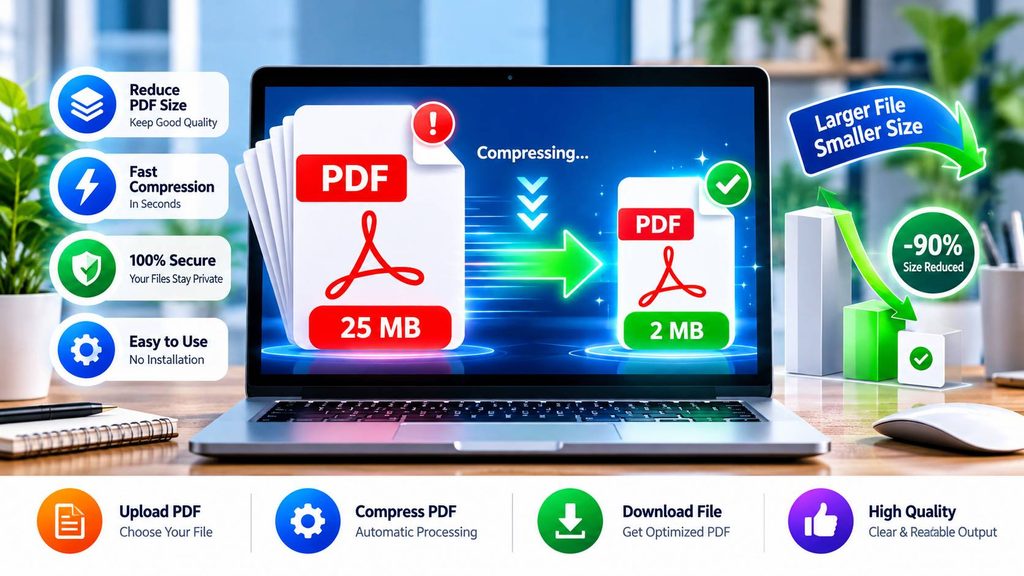
100% Free PDF Compressor Online – Reduce PDF File Size Fast
A PDF that is too large can stop you at the worst moment. The email bounces back with an “attachment too large” message, a job portal rejects your resume, or a scholarship form refuses your scanned certificates. A free PDF compressor helps you reduce PDF file size right in your browser, so you can upload, email, or store your document without installing software or creating an account. If you also need to combine several files into one document, you can use our free PDF Merge tool.
This guide explains what a PDF compressor does, why PDFs get so large, and how to compress a PDF online step by step. You will also find advice on reading your results, keeping text readable, using the tool on phones and tablets, fixing common problems, and handling your files carefully.
What Is a PDF Compressor?
A PDF compressor is a tool that makes a PDF file smaller so that it is easier to send, upload, and store. It does this by reducing the weight of the parts of the file that take up the most space.
In most PDFs, the heaviest parts are images. A scanned document is often just a stack of photos placed on pages. A presentation exported to PDF carries pictures, charts, and backgrounds. A brochure or catalog may contain dozens of high-resolution graphics. The Aanamil PDF Compressor works on the images embedded inside your PDF and processes them in your browser.
The idea is simple: your PDF goes in, a lighter version comes out, and you download it. You do not need Adobe software, a desktop program, or a technical background.
Why Reduce PDF File Size?
A smaller PDF is easier to handle in almost every situation. Here are the most common reasons people compress their files.
Email Attachment Limits
Most email services limit the size of attachments. A report with many images or a scan of a signed contract can easily go over that limit. A smaller PDF is far more likely to send without trouble.
Upload Limits on Websites and Portals
Job portals, university admission systems, exam registration pages, and government forms often set a maximum file size for uploads. If your PDF is too large, the form simply rejects it. Reducing the file size is often the quickest way to get past this.
Faster Sharing and Downloading
Large files take longer to upload and download, especially on slow or mobile connections. A lighter PDF is also more comfortable for the person receiving it.
Saving Storage Space
Phones, laptops, and cloud accounts all have limited space. Compressing PDFs you want to keep, such as old invoices, notes, or scanned records, frees up room for other files.
Smoother Viewing
A smaller PDF may be quicker to download and open, depending on the device and file.
Features of the Aanamil PDF Compressor
The Aanamil PDF Compressor is built to be simple and quick to use. Here is what it offers:
- Free to use. There are no fees, no subscription, and no payment step.
- Reduce PDF file size. The tool compresses the images embedded in your PDF to help make the file lighter.
- Drag and drop or choose a file. Drop your PDF into the upload area, or click “Choose PDF File” to select it from your device.
- File details before compression. After you select a PDF, the tool shows the file name and its original size, so you know what you are starting with.
- One-click compression. Click “Compress PDF” and the tool processes the file automatically.
- Size comparison afterward. The tool shows the compressed size next to the original size, so you can see the difference.
- Download the result. Use “Download Compressed PDF” to save the new file to your device.
- Start again easily. “Choose Another PDF” lets you compress a different file without leaving the page.
- Works in the browser. You can use it on laptops, desktops, tablets, and mobile phones, with nothing to install.
- No signup or login. You do not need to create an account.
- Local processing. Your PDF is processed in your browser and is not uploaded to a server.
Each of these points is explained in more detail in the sections below.
How to Compress a PDF Online: Step-by-Step Guide
The process is simple, although processing time depends on the PDF file size and your device.
- Open the PDF compressor. Use the tool on this page in a supported web browser.
- Select your PDF. Drag and drop the file into the upload area, or click “Choose PDF File” and pick it from your device.
- Check the file details. The tool shows the file name and original size. Make sure it is the right document.
- Click “Compress PDF.” The tool processes your file automatically.
- Compare the sizes. When it finishes, the tool shows the compressed size next to the original size.
- Download the PDF. Click “Download Compressed PDF” to save the new file, then open it and scroll through the pages to check that everything is clear.
If you want to compress another document, click “Choose Another PDF” and repeat the steps. Keep your original file until you have checked the result.
Understanding Your Results
After compression, the most useful thing you can do is compare the numbers. The tool shows the original size and the compressed size, so you can decide which file to use.
Compression works on the images inside your PDF, so the result depends on what the document contains. Image-heavy files may shrink noticeably, while text-only or already optimized files may shrink very little. In some cases, the new version can even end up slightly larger than the original. This can happen with any compression tool when a file has little left to reduce.
Here is a practical way to handle the result:
- If the compressed file is smaller, open it, check that the pages are readable, and use it.
- If the file is about the same size or larger, keep your original, because compression did not help for that document.
- If the image quality is not suitable, keep your original as well.
- If the file is still too large for your upload limit, try the source-level fixes in the sections below.
Always check the final file size against the limit of the website or email service you plan to use.
What Affects How Much a PDF Can Shrink?
Not every PDF behaves the same way. Knowing what is inside your file helps you set realistic expectations.
Scanned Documents
Scans are usually made of large images, so they often have the most room to shrink. A scan saved at a very high resolution may be much heavier than it needs to be for reading on a screen.
Photo-Heavy PDFs
Albums, portfolios, brochures, and reports with many photographs contain a lot of image data. These files can benefit from compression.
Presentations Exported to PDF
Slides with large backgrounds, pictures, and charts can produce heavy PDFs. Compression can help reduce their weight.
Text-Only PDFs
A PDF that contains mostly text is already small. Because the tool focuses on embedded images, a text-only document may change very little.
Files That Were Already Compressed
If a PDF has been optimized before, for example by another tool or by the app that created it, there may be little left to reduce. Compressing it again will not necessarily make it smaller.
Tips for Better Results and Readable Output
Compression is most useful when you combine it with a few good habits.
- Start with the original document. Compress the first version you created rather than a copy that has been compressed several times.
- Scan at a sensible resolution. A scan does not need to be extremely large to be readable. Moderate settings usually keep text clear and the file smaller.
- Crop out empty space. If you photographed a page, crop away the table and background so the file contains only what you need.
- Remove unnecessary pages. Blank pages, duplicates, and pages you do not need add weight.
- Resize images at the source. If your PDF comes from a document or presentation, resize large pictures before exporting to PDF.
- Check the final PDF. Zoom in on small text, numbers, signatures, and stamps to confirm that they are still legible.
- Keep your original file. If the compressed version is not suitable, you can always go back and try another approach.
How to Compress a PDF on Android, iPhone, Tablets, Windows, and macOS
The compressor runs in a supported web browser, so you do not need a different app for each device.
Android Phones and Tablets
Open your browser, visit the tool, and tap “Choose PDF File.” Your device’s file picker lets you select a PDF from your storage or downloads folder. After compression, tap “Download Compressed PDF” and find the file in your downloads.
iPhone and iPad
Open the tool in your browser and tap “Choose PDF File.” You can usually pick a PDF from the Files app or from your cloud storage. Once the compressed PDF is ready, download it and open it from your browser’s downloads or from the Files app.
Windows
On a Windows computer, drag the PDF from File Explorer into the upload area, or click “Choose PDF File” and browse to the document.
macOS
On a Mac, drag the PDF from Finder into the upload area, or use the button to browse for the file.
On any device, keep your browser reasonably up to date. If something does not respond as expected, refresh the page or try another supported browser.
Compressing PDFs for Forms, Applications, and Portals
Many people look for a PDF compressor because a specific website rejected their file. A short routine helps.
- Find the size limit. Check the upload instructions on the website. They usually state a maximum size.
- Compress your PDF. Use the tool and look at the compressed size it shows.
- Compare with the limit. If the new file is under the limit, download it and upload it to the form.
- If it is still too large, remove unneeded pages, or split the documents into separate files if the portal accepts several uploads.
- Check readability. Before submitting, open the PDF and make sure that names, dates, and numbers are clearly visible.
This routine suits exam registrations, scholarship applications, job applications, visa and bank forms, and many other everyday uploads. Always follow the file requirements of the website you are using.
Common Problems and Troubleshooting
Most issues are easy to fix.
- The compressed file is not smaller. The PDF may have little image data or may already be optimized. Keep the original, or reduce the source images before creating a new PDF.
- The file is still too large for a portal. Remove extra pages, resize the images at the source, or split the document.
- The text looks soft after compression. If the document is a scan, the text is part of an image. Rescan at a moderate resolution and compress again.
- The PDF will not load. Check that the file opens normally on your device and is a real PDF file. Try another browser if the problem continues.
- The tool is slow with a large file. Processing happens on your own device, so a very large PDF depends on its memory. Close other tabs and try again.
- The download does not appear. Check your browser’s downloads list or your device’s downloads folder, and make sure your browser is allowed to save files.
If a problem continues, refresh the page and select your file again.
Privacy and Safety Considerations
Privacy matters when your PDFs contain invoices, contracts, identity documents, or academic records. The Aanamil PDF Compressor processes your file locally in your browser, and it is not uploaded to a server. Because there is no signup or login, there is also no account to store your documents.
Even so, a few common-sense habits are worth following:
- Avoid compressing sensitive documents on public or shared computers.
- Delete PDFs you no longer need from your device and downloads folder.
- Keep your browser and operating system up to date.
- Share compressed PDFs only with the people who need them.
Who Can Benefit from a PDF Compressor?
A PDF compressor is useful anywhere documents need to be sent, uploaded, or stored.
Students
Students often need to submit assignments, project reports, and scanned supporting documents through portals with strict size limits. A lighter file is easier to upload and to share with classmates.
Job Seekers
Resumes with graphics, portfolios, and bundles of certificates can become heavy. A smaller PDF is easier to attach to an application and quicker for a recruiter to open.
Office Workers
Reports, presentations, and scanned records are often shared by email. Compression helps them stay under attachment limits and saves space in shared folders.
Freelancers and Small Businesses
Designers, photographers, and consultants often send proposals, quotes, and portfolios. A lighter PDF is more comfortable for clients to download, especially on a mobile connection.
Everyday Users
Anyone who needs to send a scanned form, a bill, or an ID-related document to a bank, school, or office can use a PDF compressor to make the file easier to send.
Frequently Asked Questions
Is the PDF compressor free to use?
Yes. The tool is free, with no fees and no subscription.
How do I reduce PDF file size with this tool?
Select your PDF, click “Compress PDF,” compare the sizes the tool shows, and download the compressed file. The step-by-step guide above covers the whole process.
Will the PDF be smaller every time?
Not always. The result depends on what the PDF contains, and the new file can sometimes be the same size or larger. Compare the sizes and keep the better version.
Does compression affect quality?
It can. Because the tool works on embedded images, some image detail may change. Check the finished PDF and keep your original if the result is not suitable.
Can I use it on a phone or tablet?
Yes. It works in supported browsers on Android, iPhone, and tablets, as well as on Windows and macOS computers.
Are my files uploaded to a server?
No. Your PDF is processed in your browser and is not uploaded to a server.
Do I need to sign up or log in?
No. No signup or login is required.
Do I need to install any software?
No. The tool runs in your browser, so there is nothing to download or install.
Can I compress more than one PDF?
Yes. After you finish, click “Choose Another PDF” to compress a different file.
What should I do if the file is still too large?
Try removing unnecessary pages, resizing the images at the source, or splitting the document into smaller files.
Conclusion
A PDF that is too heavy to send or upload does not have to slow you down. With the free Aanamil PDF Compressor, you can select a PDF, compress its embedded images in your browser, compare the original and compressed sizes, and download the result, with no signup and no upload to a server.
Results vary by document, so always check the new file size and make sure the pages are still clear before you share them. Start with the original file, keep a backup, and combine compression with sensible scanning habits for the best outcome. If you would like to compare options, you can also try the Adobe Acrobat online PDF compressor.