
QR Code Scanner
Scan QR codes using your camera or upload an image from your gallery.
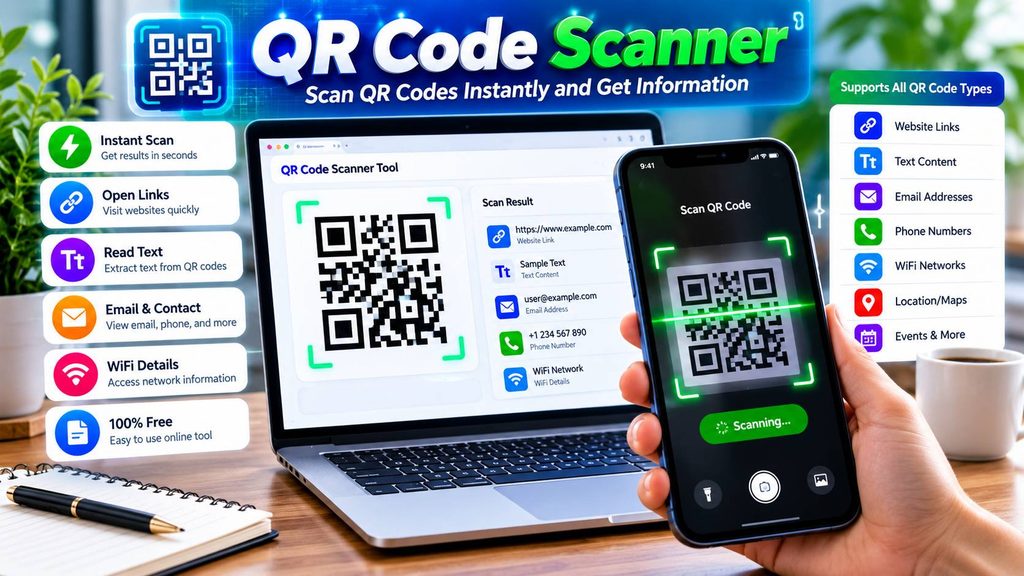
100% Free QR Code Scanner Online – Scan QR Codes Instantly
You see a QR code on a restaurant table, a product box, a poster, or a screenshot, and you want to know what is inside it before you open anything. A free QR code scanner lets you read that code directly in your browser, either by pointing your camera at it or by uploading a saved image, with no separate app to install.
This guide explains what a QR code scanner does, what information a QR code can hold, and how to scan a QR code online using your camera or your gallery. You will also find practical advice for phones, tablets, and computers, tips for better scanning results, troubleshooting help, and a clear look at QR code safety and privacy.
What Is a QR Code Scanner?
A QR code scanner is a tool that reads the information stored inside a QR code. QR stands for Quick Response. A QR code is a two-dimensional barcode made of small black and white squares, and those squares represent data such as a website address, a piece of text, or contact details.
When you scan a QR code, the scanner looks at the pattern, decodes it, and shows you the information it contains. You do not have to type a long web address or copy a code by hand. The scanner does the reading for you.
Many phones can scan QR codes with their built-in camera. An online scanner is still useful in several situations: when you are on a computer, when the code is saved as an image or screenshot, when you want to read the content before opening a link, or when you simply prefer to use a browser instead of an app.
What Can a QR Code Contain?
QR codes can store many kinds of information. Common examples include:
- Website links. The most common use, taking you to a webpage, menu, form, or online document.
- Plain text. A message, a note, a code, or an instruction.
- Contact details. A name, phone number, or email address.
- Email information. An address or a prepared message.
- Wi-Fi details. Network information for compatible devices.
- Phone numbers. A number that is easy to read and copy.
- Location information. A map location or coordinates.
- Event or ticket information. Details used for entry or booking.
What you see after scanning depends on what was encoded in the QR code. A scanner shows you the content so you can review it and decide what to do next.
Features of the Aanamil QR Code Scanner
The Aanamil QR code scanner is built to be simple and works in a supported web browser. Here is what it offers:
- 100% free to use. There are no fees and no payment steps.
- Scan with your camera. Click “Start Camera,” allow camera access when your browser asks, and point the camera at a QR code.
- Stop the camera when you finish. Use “Stop Camera” to turn the camera off as soon as you have your result.
- Upload from your gallery. Click “Upload from Gallery” to select a saved image or screenshot that contains a QR code.
- Clear result display. The decoded information appears in the “Scanned Result” area, so you can read it before taking any action.
- Works on different devices. Use it on mobile phones, tablets, and desktop or laptop computers.
- No installation needed. The tool runs in your browser, so there is nothing to download.
- Browser-based processing. Scanning happens on your device. The privacy section below explains how.
Each of these features is explained in more detail in the guides below.
How to Scan a QR Code with Your Camera
Camera scanning is the quickest option when the QR code is in front of you, for example on a poster, a package, or a printed page.
- Open the QR code scanner in a supported web browser.
- Click “Start Camera.”
- Allow camera access. Your browser will ask for permission. Choose to allow it so the scanner can see the code.
- Position the QR code. Hold your device steady so that the whole code is visible and in focus.
- Wait for the result. When the code is recognized, the information appears under “Scanned Result.”
- Click “Stop Camera” to turn the camera off when you are done.
- Review the result carefully before opening any link or using the information.
Good lighting and a steady hand make a big difference. If the code does not scan right away, move slightly closer or farther away until it becomes sharp on the screen.
How to Scan a QR Code from an Image or Screenshot
Sometimes the QR code is not in front of you. It might be in a screenshot, a photo you took earlier, or an image someone sent you. In that case, uploading is easier than trying to point a camera at another screen.
- Open the QR code scanner in your browser.
- Click “Upload from Gallery.”
- Select the image from your phone gallery, photo library, or computer folder.
- Wait for the tool to read the code.
- Check the “Scanned Result” area to see the decoded information.
- Review the content before opening any link.
For the best results, use an image where the whole QR code is visible, sharp, and not cropped at the edges. A larger, clearer image usually scans better than a small, blurry one.
How to Scan QR Codes on Android, iPhone, Tablets, Windows, and macOS
The scanner runs in a browser, so the steps are similar on every device. Camera access works the same way, but the permission prompt looks a little different on each system.
Android Phones and Tablets
Open your browser, visit the tool, and tap “Start Camera.” When your browser asks for camera permission, tap “Allow.” To scan a saved image, tap “Upload from Gallery” and choose a picture from your gallery or storage.
iPhone and iPad
Open the tool in your browser and tap “Start Camera.” Allow camera access when prompted. If you want to scan a screenshot, tap “Upload from Gallery” and select it from your photo library or the Files app.
Windows
On a Windows computer, click “Start Camera” to use your webcam, and allow access in the browser prompt. To scan an image, click “Upload from Gallery” and browse to the file in your folders.
macOS
On a Mac, click “Start Camera” and allow camera access for your browser. If macOS asks for permission at the system level, make sure your browser is allowed to use the camera in your privacy settings. To scan a saved image, use “Upload from Gallery.”
On any device, keep your browser up to date. If the camera does not start, check that no other app is using it and that your browser has permission to access it.
Tips for Better QR Code Scanning Results
Most scanning problems come down to image clarity. These habits help.
- Use good lighting. Bright, even light helps the scanner see the pattern clearly.
- Avoid glare and shadows. Reflections on glossy paper or screens can hide parts of the code.
- Keep the whole code in view. Do not crop the edges, and leave a small blank border around the code.
- Hold the device steady. Movement causes blur, which makes the pattern harder to read.
- Fill the frame sensibly. The code should be large enough to see clearly, but not so close that it goes out of focus.
- Use the original image when uploading. Screenshots and photos that have been compressed many times can lose detail.
- Try a different angle. If one position fails, tilt the device slightly or change the distance.
- Clean the camera lens. A smudged lens can make every scan look soft.
Is It Safe to Scan a QR Code?
Scanning a QR code is quick, but the code itself can lead anywhere. A QR code is just a container, and a container can hold a safe link or a harmful one. This is why reading the result first, as this tool allows, is a good habit.
Here are practical ways to stay careful:
- Check the website address. Look carefully at the full link in the result. Misspelled names or unusual endings are warning signs.
- Be cautious with shortened links. A short link hides its real destination, so be extra careful before opening it.
- Do not trust unexpected codes. Be wary of QR codes in unsolicited messages, emails, or stickers placed over other codes in public places.
- Never enter sensitive details on an unfamiliar page. Passwords, card numbers, and one-time codes should only go into websites you trust.
- Be careful with payment requests. Confirm who you are paying and the amount before approving anything.
- Think before downloading. If a code leads to a file or an app download, make sure you trust the source.
When in doubt, do not open the link. Contact the organization directly through a website or phone number you already trust.
Troubleshooting: When a QR Code Will Not Scan
If something does not work, these fixes cover the common cases.
- The camera does not start. Check that you allowed camera access in your browser. If you refused it earlier, open your browser’s site settings and allow the camera, then reload the page.
- The camera is already in use. Close other apps or tabs that might be using the camera, then click “Start Camera” again.
- The code is not recognized. Improve the lighting, move closer or farther away, and hold the device steady. Make sure the whole code is visible.
- The uploaded image does not scan. Use a sharper, larger image where the QR code is fully visible. Avoid heavily cropped or blurry pictures.
- The code looks damaged. A torn, faded, or smudged code may not be readable. Ask for a new copy if you can.
- The result looks strange. Some QR codes contain data meant for a specific app or system, so the text may not look like a normal link. Do not use content you do not understand.
- Nothing happens after the scan. Refresh the page, try another supported browser, and scan again.
Privacy and Camera Permissions
Camera access is sensitive, so it helps to know what is happening. When you click “Start Camera,” your browser asks for permission, and you stay in control. You can allow or block access, and you can stop the camera at any time with “Stop Camera” or by closing the tab.
The Aanamil QR code scanner processes your camera view and uploaded images on your device, inside your browser, and they are not uploaded to a server. A few simple habits add extra protection:
- Allow camera access only on websites you trust.
- Stop the camera when you finish scanning.
- Avoid scanning QR codes that contain sensitive information on public or shared computers.
- Keep your browser and operating system up to date.
Who Can Benefit from an Online QR Code Scanner?
QR codes appear almost everywhere, so a browser-based QR code scanner is useful for many kinds of people.
Everyday Users
People who come across QR codes on packaging, posters, tickets, and public notices and want a quick way to read them without installing an app.
Students and Teachers
Schools and training programs often share forms, study material, and class pages as QR codes, so learners and teachers can open the same resource quickly.
Office Workers
Professionals who handle business cards, event badges, meeting invitations, and printed documents that include QR codes.
Small Business Owners and Freelancers
Owners who use QR codes on menus, brochures, and invoices, and who also receive codes from clients and suppliers.
Travelers and Event Visitors
Maps, guides, schedules, and information boards use QR codes to share details quickly, whether you are visiting a city, a museum, or a conference.
Real-Life Situations Where a QR Code Scanner Helps
The same tool can solve several different practical tasks:
- Checking a link before opening it. Scan the code, read the web address in the result, and decide whether it looks right.
- Scanning a QR code from a screenshot or saved image. Upload a screenshot, a saved photo, or an image someone sent you, and read the result without needing a second device or the original printout.
- Copying encoded information. Read text, contact details, or other encoded information and use it where you need it.
- Testing your own QR code. After you create a QR code for a website, menu, or form, scan it to confirm that it contains the information you expect.
Frequently Asked Questions
Is the QR code scanner free to use?
Yes. The tool is 100% free, with no fees and no subscription.
How do I scan a QR code online?
Open the tool, click “Start Camera,” allow camera access, and point the camera at the code. The information appears under “Scanned Result.” The step-by-step guide above covers the whole process.
Can I scan a QR code from an image or screenshot?
Yes. Click “Upload from Gallery,” select the image, and the tool reads the code and shows the result.
Does it work on mobile phones, tablets, and computers?
Yes. It works in supported browsers on mobile phones, tablets, and desktop or laptop computers.
Do I need to install an app?
No. The scanner runs in your browser, so there is nothing to download or install.
Are my camera view and images uploaded to a server?
No. Your camera view and uploaded images are processed in your browser and are not uploaded to a server.
Why is my camera not starting?
Your browser may be blocking access, or another app may be using the camera. Allow camera permission for the site, close other apps that use the camera, and try again.
Why will my QR code not scan?
The code may be blurry, cropped, damaged, too small, or poorly lit. Use a clearer image, keep the whole code visible, and try again.
Is it safe to open a link from a QR code?
Not always. A QR code can lead to an unsafe website. Read the result carefully, check the web address, and avoid entering sensitive details on unfamiliar pages.
What should I do after I finish scanning?
Click “Stop Camera” to turn the camera off, and close the page if you are on a shared device.
Conclusion
A QR code is only useful if you can read it quickly and safely. With the free Aanamil QR code scanner, you can scan a code with your camera or upload an image from your gallery, read the result in your browser, and decide what to do next, on a phone, tablet, or computer.
Good lighting, a clear image, and a quick look at the result before you open any link will give you the best and safest experience. If you also want to create your own QR code, you can try the Adobe Express free QR code generator.