
Image to Text
Extract clean text line-by-line and download as TXT or PDF instantly.
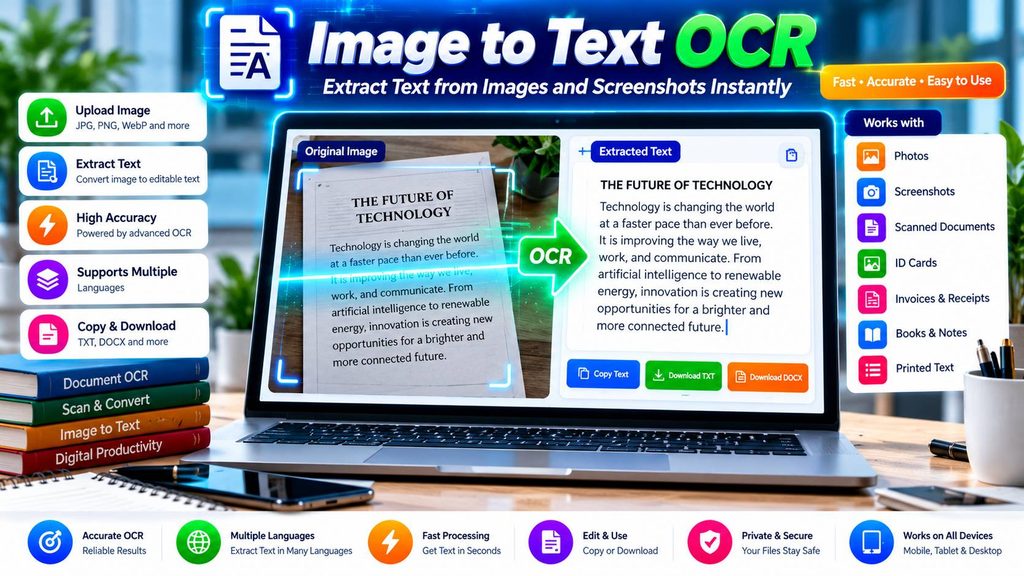
Free Image to Text Converter – Extract Text from Images Online
Need to copy text from an image, screenshot, or scanned document? An Image to Text Converter can help you turn text inside an image into editable digital text. Instead of typing every word manually, you can use Optical Character Recognition (OCR) technology to recognize and extract text from supported images.
Whether you are a student, teacher, office worker, blogger, or business professional, an online Image to Text OCR tool can make everyday tasks easier and save time.
What Is an Image to Text Converter?
An Image to Text Converter is a tool that extracts readable text from an image. It uses a technology called Optical Character Recognition, commonly known as OCR.
OCR analyzes characters in an image and converts recognized words into machine-readable text. This can be useful when you have a screenshot, photograph, printed page, or scanned document that contains information you want to copy or edit.
How to Convert an Image to Text Online
Using an online Image to Text Converter is simple when the tool supports your image format.
- Open the Image to Text OCR tool.
- Select or upload an image containing text.
- Start the text extraction process.
- Wait for the tool to recognize the text.
- Review the extracted content for errors.
- Copy the text or download it if the tool provides those options.
For a convenient collection of online utilities, visit “Aanamil.com” (https://aanamil.com/).
Key Features of an Image to Text OCR Tool
- Extract Text from Images
Convert text visible in supported images into editable text without manually typing every line.
- Copy Text from Screenshots
Screenshots often contain useful information, such as instructions, messages, notes, or reference material. OCR can help extract this information for easier reuse.
- Convert Scanned Documents
OCR can recognize printed text in supported scanned documents and make it easier to work with the extracted content.
- Save Time on Manual Typing
Instead of retyping a complete page, you can use OCR to create an editable text version and then correct any recognition mistakes.
- Work with Different Types of Content
Depending on the tool’s supported formats and recognition capabilities, OCR may work with photographs, screenshots, printed pages, and other text-containing images.
Why Use an Image to Text Converter?
An Image to Text Converter can be useful in many everyday situations.
- Students: Extract notes and text from educational screenshots.
- Teachers: Convert printed learning materials into editable text.
- Office Workers: Reuse information from document images.
- Bloggers and Writers: Extract reference text for research and drafting.
- Businesses: Digitize printed information for easier editing and organization.
- Everyday Users: Copy text from photographs and screenshots.
Always make sure you have permission to copy or reuse copyrighted material.
What Is OCR and How Does It Work?
Optical Character Recognition is a technology that identifies text within images and converts it into digital characters. The software analyzes the shapes and patterns of letters, numbers, and symbols to recognize the text.
OCR accuracy depends on several factors, including image quality, font style, language, lighting, and the clarity of the original document. Handwriting, unusual fonts, and blurry images may be more difficult to recognize accurately.
To learn more about the technology, read the official “Google Cloud OCR guide” (https://cloud.google.com/blog/products/ai-machine-learning/what-is-ocr).
Tips for Getting Better OCR Results
Follow these tips to improve text recognition:
- Use a clear, high-resolution image.
- Make sure the text is sharp and readable.
- Avoid blurry photographs and excessive shadows.
- Keep the document straight instead of tilted.
- Crop unnecessary areas when appropriate.
- Use images with good contrast between the text and background.
- Check the extracted text before copying or publishing it.
Even a good OCR tool can make mistakes, so proofreading is important.
Is an Online Image to Text Converter Safe?
Safety depends on how the particular tool processes your files. Before uploading an image, check the website’s privacy policy and avoid submitting sensitive documents unless you understand how the files are handled.
If privacy matters, look for tools that process images locally in your browser and explain clearly whether files are transmitted to a server. Do not assume that every online OCR tool offers local processing.
Frequently Asked Questions (FAQs)
What is an Image to Text Converter?
It is a tool that uses OCR technology to extract readable text from supported images and convert it into digital text.
Can I extract text from a screenshot?
Yes, if the screenshot contains clear text and the OCR tool supports its image format.
Can OCR recognize handwritten text?
Some OCR systems support handwriting recognition, but results vary depending on handwriting style, image quality, language, and the tool’s capabilities.
Why is the extracted text incorrect?
Blurry images, low resolution, unusual fonts, poor contrast, and complex layouts can cause recognition errors. Use a clearer image and proofread the result.
Can I copy the extracted text?
Many Image to Text tools provide a copy option. Some also offer downloads, depending on their features.
Does OCR work with every image?
No. OCR performance depends on the image quality, text visibility, language, and supported file formats.
Conclusion
An Image to Text Converter is a practical way to extract text from screenshots, photographs, and scanned documents. By using OCR technology, you can reduce manual typing a100% Free Image to Text Converter – Online OCR Tool
You have a photo of a printed page, a screenshot of an important message, or a picture of a notice, and you need the words as text you can copy, edit, or save. Retyping every line by hand is slow and easy to get wrong. A free Image to Text converter uses OCR to read the text in your picture and turn it into editable text, right in your browser.
This guide explains what an Image to Text converter does, how OCR works in simple terms, and how to extract text from an image step by step. You will also find tips for better accuracy, advice for phones, tablets, and computers, troubleshooting help, and a clear look at privacy.
What Is an Image to Text Converter?
An Image to Text converter is a tool that reads the text inside an image and gives it back to you as digital text. The picture might be a photo of a document, a screenshot, a scanned page, or a snapshot of a sign or notice.
The technology behind it is called OCR, short for Optical Character Recognition. A picture of text is just a grid of colored dots to a computer. OCR analyzes the shapes of letters, numbers, and symbols in that grid and works out which characters they most likely are. The result is plain text that you can select, copy, edit, search, and save.
This is different from simply looking at the image. Text inside a picture cannot be copied or searched. After OCR, it can.
How OCR Works in Simple Terms
You do not need technical knowledge to use an Image to Text converter, but a basic idea of the process helps you get better results.
- The tool looks at the image. It finds areas that look like text and separates them from the background.
- It identifies lines and characters. The tool detects where each line of text sits and examines the shape of each character.
- It matches shapes to letters. Each shape is compared with the characters it knows and the most likely match is chosen.
- It outputs text. The recognized characters are assembled into words and lines.
Because the tool is matching shapes, the quality of the image matters a great deal. Clear, sharp, well-lit text is easy to match. Blurry, tilted, or low-contrast text is harder, which is why most of the tips in this guide focus on the source image.
Features of the Aanamil Image to Text Converter
The Aanamil Image to Text converter is built for quick, everyday text extraction. Here is what it offers:
- 100% free to use. There are no fees and no payment steps.
- Upload a document photo. Click the upload area to select an image from your device. The tool works with photos, screenshots, and common image formats such as JPG, PNG, and WebP.
- Preview before extracting. Check the image you selected before you run the extraction.
- Extract Structured Lines. One click reads the text in your image and shows it line by line in the results box.
- Copy button. Copy the extracted text to your clipboard in one click.
- Download as TXT. Save the text as a plain text file.
- Download as PDF. Save the text as a PDF document.
- Clear button. Reset the tool and start again with a new image.
- Works on all your devices. Use it on mobile phones, tablets, laptops, and desktop computers.
- No installation needed. The tool runs in your browser, so there is nothing to download.
- Browser-based processing. Your image is processed on your device. The privacy section below explains more.
How to Convert an Image to Text Online
The process is the same on every device and usually takes under a minute.
- Open the Image to Text converter in a supported web browser.
- Click the upload area. It is labeled “Click to upload document photo.”
- Select your image from your device, such as a photo, screenshot, or scanned page.
- Check the preview to confirm that you selected the right image and that the text is visible.
- Click “Extract Structured Lines.” The tool reads the image and processes the text.
- Review the result. The extracted text appears line by line in the results box. Read through it and correct any mistakes.
- Copy or download. Use “Copy,” “TXT,” or “PDF” depending on what you need.
- Click “Clear” when you want to start over with another image.
Always read the result before you use it. OCR is very helpful, but no tool reads every image perfectly.
Copy, TXT, or PDF: Which Output Should You Choose?
After extraction, you have three ways to take your text with you. Each fits a different need.
- Copy. The fastest choice when you want to paste the text straight into a message, document, spreadsheet, or note. It is ideal for short passages, quotes, or addresses.
- TXT. A plain text file with no formatting. Choose it when you want to keep the words, open them in any text editor, or move them into another program later.
- PDF. A document you can read, share, or print as it is. Choose it when you want a tidy file to send to someone or keep for your records.
If you are unsure, copy the text first, check it, and then download the format you need.
What Kinds of Images Work Best?
The converter is designed for images that contain readable text. These are the most common cases.
Screenshots
Screenshots usually give the cleanest results because the text is crisp and evenly lit. They are a good choice when you need to copy text from a chat, a web page, an app, or a document that does not allow selecting text.
Photos of Documents
A photo of a printed page, a notice, a form, or a page from a book works well when the page is flat, well lit, and in focus. Hold the camera straight above the page and fill the frame with the text.
Scanned Pages
Scanned pages work well when the scan is sharp and the text is dark against a light background. A scan at a moderate resolution is usually clear enough.
Typed and Printed Text
Standard printed fonts are the easiest for OCR to recognize. Decorative fonts, very small text, and heavily stylized lettering are harder.
Complex layouts such as tables, multiple columns, or text laid over a busy background may not come out exactly as they appear, so check the result carefully when your image has one of these layouts.
Tips for Better Text Extraction
Most accuracy problems come from the image rather than the tool. These habits make a visible difference.
- Use good lighting. Bright, even light removes shadows that can hide letters.
- Hold the camera straight. Photograph a page from directly above instead of at an angle, so lines stay straight.
- Keep the image sharp. Hold your device steady and wait for the camera to focus before taking the picture.
- Fill the frame with text. Crop out the table, background, and borders so the text takes up most of the image.
- Use high contrast. Dark text on a light background is easiest to read.
- Avoid glare and creases. Reflections on glossy paper and folds in the page can break up letters.
- Use the original image. Pictures that have been forwarded many times through messaging apps can lose detail.
- Rotate the image first. If your photo is sideways or upside down, turn it upright before uploading.
- Proofread the result. Even a clean extraction can contain small mistakes.
Using the Image to Text Converter on Android, iPhone, Tablets, Windows, and macOS
The tool runs in a browser, so the steps are the same everywhere. Only the way you pick the file changes. Follow the step-by-step guide above on any device.
Android Phones and Tablets
Tap the upload area and choose a photo or screenshot from your gallery or storage.
iPhone and iPad
Tap the upload area and select a picture from your photo library or the Files app.
Windows
Click the upload area and browse to your image in File Explorer.
macOS
Click the upload area and select an image from Finder.
On any device, keep your browser up to date. If something does not respond as expected, refresh the page or try another supported browser.
Why You Should Review the Extracted Text
OCR matches shapes to characters, so it can confuse characters that look alike. Reading the result once before you use it saves you from embarrassing or costly errors.
Watch for these common mix-ups:
- The letter O and the number 0
- The letter l, the capital I, and the number 1
- The letters rn that look like m
- Missing or extra spaces between words
- Punctuation marks that are faint or small
Pay extra attention to names, phone numbers, email addresses, dates, and amounts, because a single wrong character changes their meaning. Compare the extracted text with the original image for anything important.
Troubleshooting: When the Text Is Wrong or Missing
If the results are not what you expected, these fixes cover the common cases.
- The extracted text is full of mistakes. Compare your image with the tips above, then retake the photo or use a sharper original.
- Some words are missing. Small text or a busy background may be hiding them. Crop closer to the text and try again.
- The lines look out of order. Tilted pages and multi-column layouts can confuse the reading order. Straighten the image or crop one column at a time.
- Nothing appears after extraction. Make sure the image contains readable text and that the preview shows it clearly, then run the extraction again.
- The image will not upload. Check that the file is a regular image such as JPG, PNG, or WebP, and try a smaller file if it is very large.
- The tool feels slow. Processing happens on your own device, so a very large image can take longer. Resize or crop the image and close other browser tabs.
- The copy button did not work. Select the text in the results box manually and copy it, or use the TXT or PDF download instead.
If a problem continues, refresh the page, use the “Clear” button, and upload the image again.
Privacy and Safety Considerations
Images of documents often contain personal or private information, so it is worth knowing how your file is handled. The Aanamil Image to Text converter processes your image in your browser, on your own device, and the image is not uploaded to a server. There is also no account to sign in to, so there is no profile that stores your documents.
A few common-sense habits add extra protection:
- Avoid extracting text from sensitive documents on public or shared computers.
- Clear the tool and delete downloaded files you no longer need.
- Be careful when you share extracted text that contains private details.
- Keep your browser and operating system up to date.
You should also make sure you have the right to copy and reuse the text you extract. Text from books, articles, and other copyrighted material may be protected, so use extracted text only in ways that are allowed.
Who Can Benefit from an Image to Text Converter?
An Image to Text converter helps people in very different situations.
Students and Teachers
People who study and teach with printed handouts, slides, and notes, and want to reuse that material as editable text.
Office Workers
Professionals who handle printed memos, forms, and meeting boards and want the content without retyping it.
Writers, Bloggers, and Researchers
People who work with quotes and reference passages from printed and on-screen sources and need them in their notes.
Small Business Owners and Freelancers
Owners and freelancers who keep printed or typed paperwork, such as receipts and price lists, and want it in a form they can search and edit.
Everyday Users
Anyone who sees useful text in a picture and wants it without typing it out by hand.
Everyday Tasks This Tool Makes Easier
The same converter can handle several practical jobs:
- Copying text from a screenshot. Paste a chat, instruction, or web page you captured into a document.
- Digitizing a printed page. Photograph a page and extract the text so you can edit and search it.
- Saving text you cannot select. Pull words out of an image where the text is locked in the picture.
- Building a quick PDF from a picture. Extract the text and download it as a PDF to share or print.
Frequently Asked Questions
Is the Image to Text converter free to use?
Yes. The tool is 100% free, with no fees and no subscription.
What does the Image to Text converter do?
It uses OCR to read the text in an image and shows it as editable text, line by line, in the results box.
Which image formats can I use?
You can upload common image formats such as JPG, PNG, and WebP. Use a clear photo, screenshot, or scanned page for the best results.
How do I extract text from an image?
Upload your image, check the preview, click “Extract Structured Lines,” and then review the text in the results box. The step-by-step guide above covers the full process.
Can I download the extracted text?
Yes. You can download it as a TXT file or a PDF, or use the Copy button to paste it elsewhere.
Why is some of the extracted text wrong?
OCR accuracy depends on image quality, lighting, font style, and layout. Use a sharper, well-lit image and always proofread the result.
Does it work on mobile phones, tablets, and computers?
Yes. It works in supported browsers on mobile phones, tablets, laptops, and desktop computers.
Is my image uploaded to a server?
No. Your image is processed in your browser on your own device and is not uploaded to a server.
Do I need to install any software?
No. The tool runs in your browser, so there is nothing to download or install.
How do I start over with a new image?
Click the “Clear” button to reset the tool, then upload another image.
Conclusion
Copying text out of a picture does not have to mean retyping it. With the free Aanamil Image to Text converter, you can upload a photo or screenshot, extract the text line by line, and copy it or download it as TXT or PDF, all in your browser and on any device.
A clear, well-lit image and a quick proofread of the result will give you the most accurate output. If you would like to learn about other ways to pull text from pictures, you can also read Adobe’s guide on how to extract text from an image.nd make information easier to edit, copy, and organize.
For the best results, use clear images, select a compatible tool, and review the extracted text before using it. Whether you need text for study, work, or everyday tasks, an online Image to Text OCR tool can help simplify your workflow.