
Image Converter
Convert your images instantly in your browser.
Drag & Drop your image here or
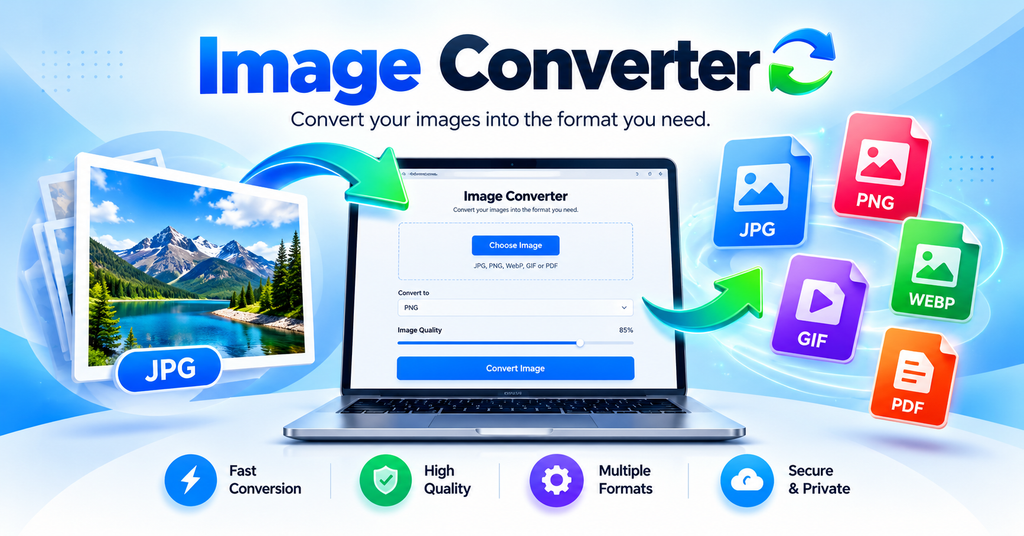
100% Free Image Converter Online – Convert Images Easily
Need a free image converter online to change a file format without installing software? This image converter helps you convert images using a straightforward browser-based workflow. Whether you are preparing visuals for websites, blog posts, presentations, or everyday sharing, this image file converter keeps the steps clear and practical.
The tool is designed to be free to use, with processing performed locally in your browser rather than by uploading files to a remote server. Pick a file, choose an output option, and save the result without installing a separate desktop program.
Open the Aanamil Image Converter to get started.
What Is an Image Converter?
An image converter is an online utility that changes a file from one format to another. For example, you might save a photograph as a JPG or JPEG file, use PNG for a graphic or screenshot, or format a file as WebP for web pages.
Different formats suit different tasks. Photographs often work well in JPG or JPEG, while graphics that need transparency usually fit PNG or WebP. Choosing the right format depends on how you plan to use the file and where it will appear.
With a browser-based picture converter and online image converter, you can work directly in your web browser without installing extra desktop software.
Convert Images Online with Aanamil Image Converter
The Aanamil Image Converter provides a free, browser-based way to convert files without requiring signup, login, or a paid subscription. According to the tool’s stated design, processing runs locally in your browser rather than uploading your files to the Aanamil server for conversion.
Select a file from your device, choose the format option you need, and download the result. Supporting a format does not automatically mean every possible input-to-output conversion pair is available in the interface.
How to Convert an Image Online
Follow these steps to convert an image online:
- Open the tool: Visit the Aanamil Image Converter.
- Choose a file: Select a file from your device.
- Select an output format: Choose the target format you want for your file.
- Convert the file: Start the conversion process and wait for it to finish.
- Download your result: Save the converted file and review it before using it in a project or uploading it to a website.
Save an original copy of important files before converting them, especially when comparing formats or output settings.
Supported Image Formats
The Aanamil Image Converter covers JPG, JPEG, PNG, WebP, GIF, and BMP formats, along with PDF support. Check the options shown in the interface for your file before converting.
JPG and JPEG
JPG and JPEG are widely used for photographs and images with rich colour gradients, though they do not support transparent backgrounds. A jpg converter or jpeg image converter using lossy compression can reduce file size while discarding some fine visual detail.
When you need to convert to jpg free or convert image to jpg for everyday sharing, the workflow is straightforward. Many users also need to convert photo to jpg, convert pic to jpg, or convert picture to jpg for standard uploads.
For switching from PNG or JPEG, common tasks include png to jpg, convert png to jpg, or change png to jpg. You can also convert jpeg to jpg when keeping files in the JPEG family.
PNG
PNG uses lossless compression and supports transparency, making it practical for logos, icons, diagrams, and interface screenshots. A png converter can keep sharp edges clean, though PNG files are often larger than similar JPG files.
You can convert image to png for crisp graphics or choose convert photo to png when saving photo files in PNG format. When moving from JPEG or JPG, you may also look for jpg to png or a jpeg to png converter.
WebP
WebP is built for web use and supports both lossy and lossless compression as well as transparency. A webp converter helps balance file size and visual clarity on web pages.
Depending on your file and tool options, you can use image to webp for web pages or switch formats with webp to jpg, convert webp to jpg, and webp to png.
GIF
GIF supports simple animation and a limited colour palette. Using a gif converter suits basic animations or short looping graphics rather than detailed photographs.
BMP
BMP is a traditional bitmap image format. A bmp converter helps when handling BMP files, so check the interface to see the conversion options available for your file.
PDF Support
PDF is a document format rather than a conventional image format. Treat PDF as a document format and check the tool interface for supported document workflows without assuming unverified conversion capabilities.
Key Features of Our Free Image Converter
- Free to Use: Access the available conversion features without a paid plan.
- No Signup Required: Start converting without signing up for an account.
- No Login Required: Use the tool directly without logging in.
- Browser-Based Local Processing: Runs locally in your web browser according to the tool’s stated design.
- No Software Installation: Works in a compatible browser without requiring desktop software.
Why Use an Online Image Converter?
Using a browser-based online image converter helps simplify routine file preparation:
- Saves Time: Convert files directly in your browser without installing desktop applications.
- Matches Different Needs: Save a photo in JPG, convert a photo to PNG for graphics, or format files for web pages and presentations.
- Supports Page Speed: Selecting suitable formats and file sizes helps keep web pages lighter to load.
Changing a file format does not automatically shrink file size or improve image quality; results depend on the original file, the chosen format, and the settings used.
Frequently Asked Questions (FAQs)
How Do I Convert JPG to PNG?
Open the Aanamil Image Converter, select your JPG or JPEG file, choose PNG as the output format, and download the result.
How Can I Convert PNG to JPG?
Open the Aanamil Image Converter, select your PNG file, choose JPG as the output format, and download the file.
How Can I Convert an Image to JPG?
Open the Aanamil Image Converter, select your file from your device, choose JPG from the output options, and save the converted file.
How Can I Convert an Image to PNG?
Open the Aanamil Image Converter, select your image file, choose PNG as the output format, and download the output.
How Do I Convert WebP Images?
Open the Aanamil Image Converter, select your file, and check the output options to convert between WebP, JPG, or PNG as supported.
Can I Convert BMP Images?
Select your BMP file in the Aanamil Image Converter and review the conversion options shown for your file.
Can I Convert GIF Images?
Select your GIF file in the Aanamil Image Converter and see which conversion options appear for your file.
Does the Tool Support PDF?
PDF is a document format rather than a standard image format. Check the options shown in the tool interface to see how PDF is handled for your file without assuming unverified conversion capabilities.
Is This Image Converter Free?
Yes, the tool is designed to be free to use without requiring a paid subscription for its conversion features.
Do I Need to Install Software?
No. You can use the tool in a compatible web browser without installing separate desktop software.
Is My Image Uploaded to a Server?
According to the tool’s stated design, conversion takes place locally in your browser rather than uploading your image file to the Aanamil server for conversion. Review the site’s privacy policy and use a trusted device and browser when handling sensitive files.
Conclusion
Whether you are preparing visuals for websites or everyday sharing, a browser-based image converter makes format changes straightforward without extra software. Visit the Aanamil Image Converter whenever you need a quick, free workflow.
Free Image Converter Online – Convert Images Easily
Convert JPG, JPEG, PNG, WebP, BMP, GIF and PDF image files online using Aanamil’s free browser-based Image Converter.
Price Currency: usd
Operating System: all Web Browser
Application Category: MultimediaApplication
4.5