
Merge PDF
Combine multiple PDF files into a single document right inside your browser. Reorder, rotate, pick pages and add page numbers.
📁 Drag & Drop your PDF files here or
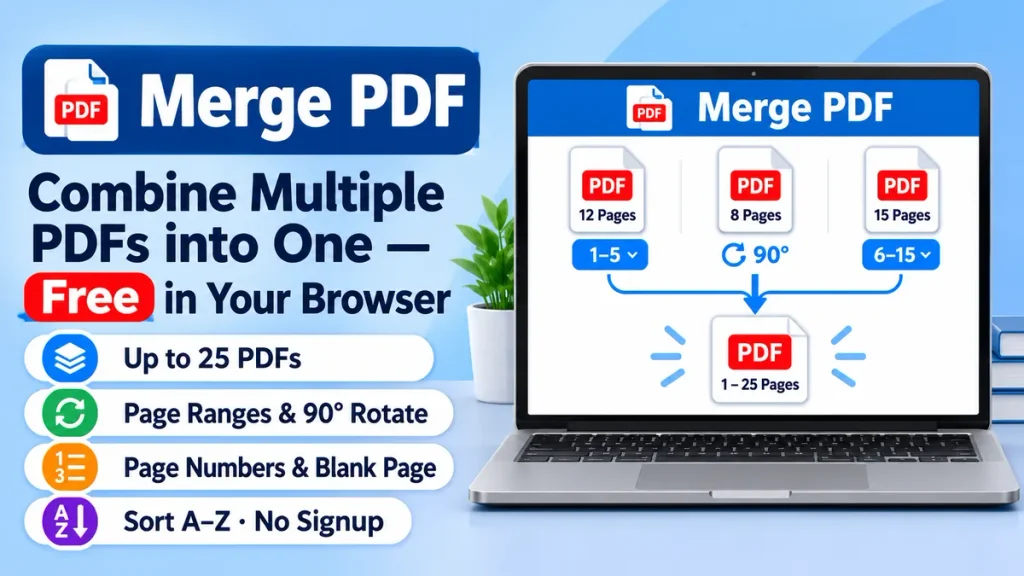
Merge PDF: Combine Multiple PDF Files into One for Free
Need to merge PDF files into a single document? Our free tool lets you combine multiple PDFs into one right in your browser. Add your files, put them in the order you want, choose which pages to keep, and download one clean PDF. There is nothing to install and no account to create.
This PDF merge tool goes a little further than a basic merger. You can pick specific pages from each file, rotate a file, add page numbers, insert a blank page between documents and name the final file yourself.
What Does a PDF Merger Do?
A PDF merger joins two or more PDF files into one document. The pages from the first file come first, followed by the pages from the second file, and so on. Instead of attaching five separate files to an email or upload form, you send a single PDF that is easier to share, print and store.
Features of Our Free PDF Merge Tool
- Merge up to 25 PDF files at once. Add them all in one go, or add more later with the Add More PDFs button.
- Drag and drop upload. Drop files onto the tool, or tap Choose PDF Files on your phone.
- Preview of every file. Each file shows a thumbnail of its first page, its size and its number of pages.
- Change the order. Move files up or down with the arrows, drag the handle on a computer, or press Sort A–Z to arrange files by name.
- Choose specific pages. Type a range such as 1-3, 5, 8- next to a file to include only those pages.
- Rotate a file. Turn all pages of a file by 90 degrees at a time.
- Add page numbers. Place numbers at the bottom center, bottom right or bottom left of the merged PDF.
- Blank page between files. Separate documents with an empty page, which is handy for printing.
- Custom file name. Name the merged PDF before you download it.
- Remove files. Delete any file from the list with one tap.
- Free, with no signup. No account, no email address and no payment.
How to Use the PDF Merge Tool
- Press Choose PDF Files or drag your PDFs into the tool.
- Check the list. Each file shows its page count, so you can confirm you picked the right ones.
- Arrange the files in the order you want using the up and down arrows or the drag handle.
- Optional: type the pages you want from a file, or rotate a file that is sideways.
- Choose whether to add page numbers and whether to insert a blank page between files.
- Type a file name for the merged PDF.
- Press Merge PDFs, then press Download Merged PDF.
Open the downloaded file and check the page order before you send or upload it.
Merge PDF Files Free Without Signup
Many online tools ask you to create an account, enter an email address or upgrade before you can finish. This one does not. You can merge PDF files free of charge, without signing up, and the tool does not add a watermark to your pages. The only limit is practical: up to 25 files in one go. If you have more, merge them in two rounds and then combine the two results.
How to Choose Specific Pages from a PDF
Next to each file there is a pages box. Leave it empty to use every page. Or type a range using these examples:
- 2 takes only page 2.
- 1-3 takes pages 1, 2 and 3.
- 1, 3, 5 takes those three pages.
- 1-3, 5 takes pages 1 to 3 and page 5.
- 4- takes page 4 through to the last page.
- 5-1 takes pages 5, 4, 3, 2 and 1 in reverse order.
The tool shows the total number of pages in the merged result as you type, so you can see the effect before you merge. If you type a page that does not exist, a short message tells you the valid range.
This also means you can pull a few pages out of a large PDF, even if you are not merging anything. Add one file, enter the pages you need and download the result.
Add Page Numbers to the Merged PDF
When you combine several documents, each file keeps its own numbering, which can look confusing. The page numbers option adds one continuous sequence across the whole merged PDF. Choose bottom center, bottom right or bottom left, and the numbers are stamped on every page, including pages that were rotated.
Why Use a Blank Page Between Files?
The blank page option adds an empty page after each file except the last. It is useful when you plan to print the document and want every file to start on a fresh sheet, or when you want a clear visual break between sections. Keep in mind that blank pages are counted when page numbers are turned on.
When Should You Merge PDF Files?
- Job and school applications. Many portals accept only one upload. Combine your cover letter, resume and certificates into a single file when the site allows it.
- Email attachments. One combined PDF is easier for the recipient than a list of separate files.
- Business paperwork. Bring invoices, quotes and contracts for one client into one document.
- Study material. Merge lecture notes, handouts and past papers into one revision file.
- Records and archives. Keep monthly bills or statements together instead of scattered across folders.
- Printing. Print one document in one go rather than opening each file separately.
Tips for a Better Merged PDF
- Name files with numbers first. Names like 01-cover-letter and 02-resume make the list easy to read and sort.
- Check page counts. The page count shown for each file helps you spot a wrong or incomplete file before merging.
- Keep your originals. The merged PDF is a new file, so your source files stay untouched.
- Mind the size. The merged file is usually close to the combined size of its parts. If it is too large for an upload, reduce it with our PDF Compressor.
- Starting with photos? If your documents are pictures, turn them into a PDF first with our Image to PDF converter and then merge the result. If a photo is in a format that cannot be used, change it with the Free Image Converter.
Troubleshooting
A file says it is password protected. The tool cannot merge locked PDFs, so that file is skipped. Open it in a PDF reader, remove the password if you are allowed to, save a copy and add that copy.
A file could not be read. The PDF may be damaged. Try opening it on your device first, or re-download or re-export it, then add it again.
I cannot add more files. You can merge up to 25 files at once. Merge in two rounds, then combine the two results.
The merge is slow. Everything happens on your device, so very large files can take time, especially on phones. Close other tabs or merge fewer files at a time.
The order is wrong. Use the arrows or the drag handle to change it, or press Sort A–Z. The Merge button returns after you change anything, so you can merge again.
The thumbnail does not appear. A preview is only a convenience. The file still merges normally.
Is It Safe to Merge PDFs Online?
The merging happens inside your web browser on your own device. Your PDF files are not uploaded to our servers to create the merged document. That said, it is good practice to avoid merging sensitive files on a shared or public computer, and to close the page when you finish.
Frequently Asked Questions
Is this PDF merger really free?
Yes. You can merge PDF files without paying, signing up or entering an email address.
How do I merge PDF files without signup?
Open the tool, add your PDFs, arrange them and press Merge PDFs. No account or email is needed at any step.
How many PDF files can I merge at once?
Up to 25 files in one go.
How do I combine multiple PDFs into one?
Add all the files, put them in order, press Merge PDFs and download the result. Every file becomes part of the same PDF, one after the other.
Can I merge PDFs on my phone?
Yes. It works in modern mobile browsers. On a phone, use the arrow buttons to reorder files.
Can I choose only some pages from a file?
Yes. Type a range such as 1-3, 5 in the pages box next to that file.
Can I change the order of the files?
Yes. Use the up and down arrows, drag the handle on a computer, or sort the list from A to Z.
Can I add page numbers?
Yes. Choose bottom center, bottom right or bottom left before you merge.
Can I merge password-protected PDFs?
No. Locked files are skipped. Remove the password in a PDF reader first, if you are permitted to.
Are my files uploaded to a server?
No. The merged PDF is created in your browser on your own device.
Will merging reduce the quality of my PDF?
The pages are copied into the new document rather than converted to images, so text and graphics stay as they were.
How do I reduce the size of a merged PDF?
Remove pages you do not need, or compress the finished file with our PDF Compressor.
Final Thoughts
A good tool to merge PDF files should be quick, clear and flexible. With this free PDF merge tool you can combine PDF files, choose the pages you need, set the order, add page numbers and download one tidy document, all without signing up. For good practice on writing clear, useful pages, Google also shares its advice on creating helpful, reliable, people-first content. Try it now, and if you need a smaller file or want to turn photos into a PDF first, the PDF Compressor and Image to PDF tools are one click away.
Merge PDF – Combine PDF Files into One Online Free
Free online Merge PDF tool that combines multiple PDF files into one document in your browser. Choose pages, reorder files, rotate, add page numbers and add blank pages between files. No signup required.
Price Currency: USD
Operating System: Windows, macOS, Linux, Android, iOS
Application Category: UtilitiesApplication