
QR Code Generator
Create custom styled QR codes with colors and instant download options right inside your browser.
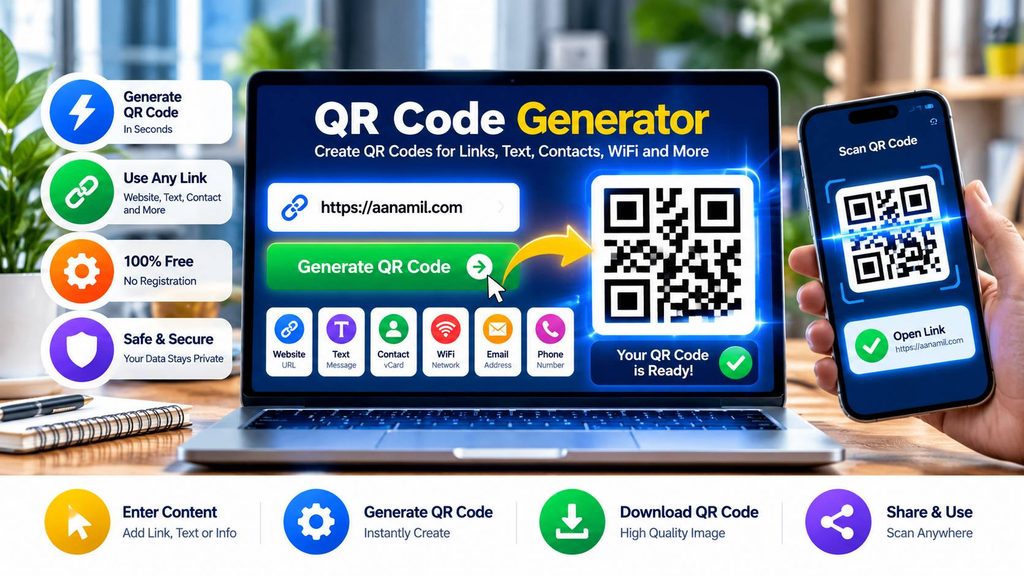
100% Free QR Code Generator – Create Custom QR Codes Online
A QR code can save people from typing a long web address, a Wi-Fi password, or an email address by hand. Whether you want to share your website, send customers to a WhatsApp chat, or let guests join your Wi-Fi, a free QR code generator turns your information into a scannable image in seconds. With this QR code maker, you can create QR codes online, pick your own colors, and download the result, all in your browser with no software to install and no account to create. If you want to read an existing QR code instead, you can use our free QR Code Scanner.
This guide explains what a QR code generator does, which types of QR codes you can create, and how to make custom QR codes step by step. You will also find tips for colors and readability, advice for printing and sharing, answers to common problems, and notes on handling your information carefully.
What Is a QR Code Generator?
A QR code generator is a tool that converts text, a link, or other details into a QR code, the square pattern of black and white modules that phones can read with their cameras. When someone scans the code, their device reads the information stored inside it and offers to open a link, show text, start a chat, join a network, or write an email.
The Aanamil QR Code Generator lets you create custom styled QR codes with your own colors and download them instantly. The tool works right inside your browser, so you do not need desktop software, design skills, or a technical background. If you have a browser and the information you want to share, you can start.
The QR code was developed in 1994 by Denso Wave, and its features and history are explained on the official QR Code website. The symbology is also described in an international standard, ISO/IEC 18004, which sets out requirements such as data encoding and error correction.
QR Code Types You Can Create
The tool has five tabs at the top, one for each type of QR code. Choose the tab that matches what you want people to do after scanning.
Website / URL
This is the most common type. Enter a web address, and anyone who scans the code is taken to that page. It works well for business websites, online portfolios, landing pages, social media profiles, menus, and event pages.
Text
A text QR code stores plain text. When scanned, the device shows the message. You can use it for short notes, instructions, serial numbers, product details, or any information that does not need a link.
A WhatsApp QR code is designed to start a WhatsApp conversation. It is useful for small businesses, shops, freelancers, and service providers who want customers to contact them quickly without saving a phone number first.
Wi-Fi
A Wi-Fi QR code lets guests connect to a network by scanning instead of typing a long password. It is handy for homes, cafés, offices, and events. Because the code carries your network details, share it only with people you want to give access to.
An email QR code prepares an email for the person who scans it. It is useful on business cards, flyers, and posters when you want people to contact you without typing your address.
Features of the Aanamil QR Code Generator
Here are the main features of this free QR code generator.
- Free to use. There are no fees, no subscription, and no payment step.
- Five QR code types. Create codes for a website or URL, text, WhatsApp, Wi-Fi, or email.
- Custom colors. Choose the QR code color and the background color using a color picker.
- Instant preview. The generated QR code appears on the page so you can check it before you save it.
- Download as PNG. Save the code as a PNG image, a common format for sharing online and inserting into documents.
- Download as SVG. Save the code as an SVG file, a scalable format that stays sharp at different sizes, which is helpful for print design.
- Create Another. Start a new QR code without leaving the page.
- Works in the browser. Use it on laptops, desktops, tablets, and mobile phones, with nothing to install.
- No signup or login. You do not need to create an account.
The steps below explain how to enter your information, choose your colors, and download your QR code.
How to Create a QR Code Online: Step-by-Step Guide
The process is simple and works the same way on every device.
- Open the QR code generator. Use the tool on this page in a supported web browser.
- Choose the QR code type. Select the tab that fits your purpose: Website / URL, Text, WhatsApp, Wi-Fi, or Email.
- Enter your information. Type or paste the details for that type. For a website QR code, enter the full web address in the Website URL field.
- Choose your colors. Pick a QR color and a background color. Keep strong contrast between the two so the code is easy to scan.
- Check the preview. Look at the QR code shown on the page and confirm that it looks the way you want.
- Download your QR code. Click “Download PNG” or “Download SVG” to save the file to your device.
- Test the code. Scan the saved QR code with your phone before you print it or share it.
If you want to make another code, click “Create Another” and repeat the steps.
Choosing Colors That Scan Well
Custom colors make a QR code match your brand, poster, or product, but not every color combination works equally well. Scanners need to tell the difference between the dark and light parts of the code, so contrast matters more than style.
A few simple rules help:
- Make the QR color darker than the background. Dark modules on a light background are the most reliable choice.
- Keep the contrast strong. Avoid pairing two colors of similar brightness, such as light gray on white or orange on red.
- Avoid reversing the colors unless you have tested the code. A light code on a dark background does not scan well in every app.
- Use solid colors. The color picker in the QR code generator lets you choose exact shades, so stay with one clear color for the code and one for the background.
- Test before printing. The preview is a guide, but only a real scan tells you whether the code works.
If a colorful code does not scan, return to a dark color on a plain light background. Readability is always more important than appearance.
PNG or SVG: Which Format Should You Download?
The QR code generator offers two download formats, and each suits different uses.
PNG is an image file that works almost everywhere. Choose PNG when you want to share the code in a message, post it on a website, add it to a presentation, or insert it into a document. A PNG has a fixed size, so avoid stretching it much larger than the original.
SVG is a scalable file made of shapes rather than pixels, which means it can be enlarged without becoming blurry. Choose SVG when the code will be printed on a banner, poster, packaging, or any large surface, or when a designer will place it in a layout.
If you are unsure, download both. You can use PNG for everyday sharing and keep SVG for print projects.
Tips for Better QR Codes
A few simple habits make the codes you create with a QR code generator more reliable and more useful.
- Check your information first. Review the web address, number, or text for typing mistakes before you create the code. A QR code will faithfully store whatever you enter, including errors.
- Use the full web address. For a website, include the complete link so the code opens the correct page.
- Keep the code large enough. Very small codes are hard to scan, especially from a distance. Print them at a comfortable size.
- Leave empty space around the code. A plain margin around the pattern helps scanners find it.
- Do not distort the shape. Stretching or squeezing the code can make it unreadable. Keep it square.
- Add a short call to action. A line such as “Scan to visit our website” tells people why they should scan.
- Test on more than one phone. If the code matters, try it on different devices and scanning apps.
- Keep a copy of the file. Save the PNG or SVG somewhere you can find it, so you do not need to recreate it.
Where to Use Your QR Code
QR codes are useful wherever a printed or digital item should lead to more information.
- Business cards and flyers. Link to a website, portfolio, or contact page.
- Posters and event materials. Point people to registration pages, schedules, or maps.
- Product packaging and labels. Share instructions, details, or support pages.
- Menus and price lists. Let customers open an online menu on their own phones.
- Shop counters and storefronts. Offer a quick WhatsApp chat or a review page.
- Homes, offices, and cafés. Help guests connect to Wi-Fi without typing a password.
- Presentations and documents. Add a code so readers can open a link directly from a printed page or slide.
Always make sure the destination is ready before you print a large batch. If a website address changes or a page is removed later, a printed code will still lead to the old address.
Who Can Benefit from a QR Code Generator?
A free QR code generator is useful for many people.
- Small business owners can place a code on a shop counter or flyer that opens a website or a WhatsApp chat.
- Freelancers and creators can add a code to a portfolio, resume, or business card.
- Students and teachers can share study links, forms, or class resources on handouts and slides.
- Event organizers can add codes to tickets, posters, and signs for schedules and registration.
- Restaurants and cafés can offer a Wi-Fi code or a link to an online menu.
- Everyday users can share a link, a note, or an email address with friends and family in a quick, scannable way.
Mobile, Tablet, and Desktop Compatibility
The Aanamil QR Code Generator is designed to work properly on mobile phones, tablets, laptops, and desktop computers. The interface adapts to different screen sizes, so you can enter your information, customize QR code colors, preview your code, and download it comfortably on whichever device you use.
As a mobile-friendly QR code generator, it lets you create a code directly from your phone without moving files to a computer first. The same applies if you are looking for a QR code generator for mobile or a QR code generator for tablet: open the tool in your browser, choose a QR code type, and follow the same simple steps.
The QR code generator works in modern web browsers on the following devices:
- Android phones and Android tablets
- iPhone and iPad
- Windows computers
- macOS computers
You do not need to install an app. Just open the page in an up-to-date browser, create your QR code, and download it as a PNG or SVG file. If something does not respond as expected, refresh the page or try another supported browser.
How to Use the QR Code Generator on Android, iPhone, Tablets, Windows, and macOS
The basic steps are the same on every device: choose the type, enter your details, pick your colors, and download the code.
Android Phones and Tablets
Open the tool in your browser, choose a QR code type, and enter your information. After creating the code, download it and look for the file in your browser’s downloads or your device’s downloads folder.
iPhone and iPad
Open the tool in your browser and create your QR code in the same way. Once the file is downloaded, you can open it from your browser’s downloads or from the Files app, and share it from there.
Windows
On a Windows computer, create your code and download the PNG or SVG file. You can find it in your Downloads folder and insert it into documents, presentations, or design files.
macOS
On a Mac, create your code and save the file. You can open it in your default image viewer or add it to a design or document.
Common Problems and Troubleshooting
Most issues are easy to fix, whether the problem is with the page or with the code itself.
- The QR code will not scan. Check the contrast between the QR color and the background. Use a dark code on a light background, make the code larger, and leave empty space around it.
- The code opens the wrong page. Check the web address you entered for typing mistakes, and create the code again with the correct link.
- The preview does not appear. Make sure you have entered your information. Refresh the page and try again if the problem continues.
- The downloaded file is hard to find. Check your browser’s downloads list or your device’s downloads folder.
- The printed code looks blurry. Use the SVG file for large prints, or download a PNG and avoid enlarging it too much.
- The colors look different when printed. Screens and printers show colors differently. Print a test copy and scan it before producing a large batch.
- A Wi-Fi code does not connect. Check that the network details you entered are correct, then create the code again.
If a problem continues, click “Create Another,” enter your details again, and test the new code.
Privacy and Safety Considerations
The Aanamil QR Code Generator works directly in your browser. The information you enter to create a QR code is processed locally on your device and is not uploaded to a server. No signup or login is required.
A QR code simply stores the information you give it, so think carefully about what you place inside one. A few common-sense habits are worth following:
- Do not put sensitive information in a QR code that you plan to display publicly, such as passwords or private details.
- Be careful with Wi-Fi codes. A Wi-Fi code carries your network details, so share it only with people you trust, and avoid posting it where strangers can scan it.
- Check links before creating codes. Make sure the destination is a page you control or trust.
- Be cautious when scanning unknown codes. Look at the link your phone shows before opening it, especially if the code came from an unfamiliar source.
- Keep your browser and operating system up to date.
Frequently Asked Questions
Is the QR code generator free to use?
Yes. You can create QR codes for free, with no fees and no subscription.
What types of QR codes can I create?
You can create QR codes for a website or URL, text, WhatsApp, Wi-Fi, and email. Choose the matching tab at the top of the tool.
Can I change the colors of my QR code?
Yes. You can choose the QR color and the background color. Keep strong contrast between them so the code scans easily.
Which formats can I download?
You can download your QR code as a PNG or an SVG file. PNG suits everyday sharing, and SVG suits large prints and design work.
Do I need to sign up or install anything?
No. This QR code maker runs in your browser, so you do not need to create an account or install any software.
Can I use it on my phone or tablet?
Yes. The tool works in supported browsers on Android, iPhone, Android tablets, and iPad, as well as on Windows and macOS computers.
Can I create more than one QR code?
Yes. After you finish, click “Create Another” to start a new code.
Why won’t my QR code scan?
The most common reason is low contrast between the code and its background. Use a dark code on a light background, make the code larger, and test it again.
Will my printed QR code stop working?
A QR code stores the information you entered. It keeps working as long as the destination, such as a web page, is still available. If a link changes or a page is removed, create a new code.
Conclusion
Sharing a link, a message, a chat, or a Wi-Fi network does not have to mean typing long details by hand. With the free Aanamil QR Code Generator, you can create QR codes online by choosing a type, entering your information, picking your colors, previewing the result, and downloading it as a PNG or SVG file, all in your browser with no signup and nothing to install.
Results depend on the information and colors you choose, so always scan your finished code before you print it or share it. Keep strong contrast, leave empty space around the code, and double-check your details. Once your code is ready, you can place it on cards, posters, menus, or screens and let people reach your information with a single scan.