
Advanced Text to Speech & File Reader
Convert text or uploaded files (TXT, PDF) into instant natural speech across all global languages.
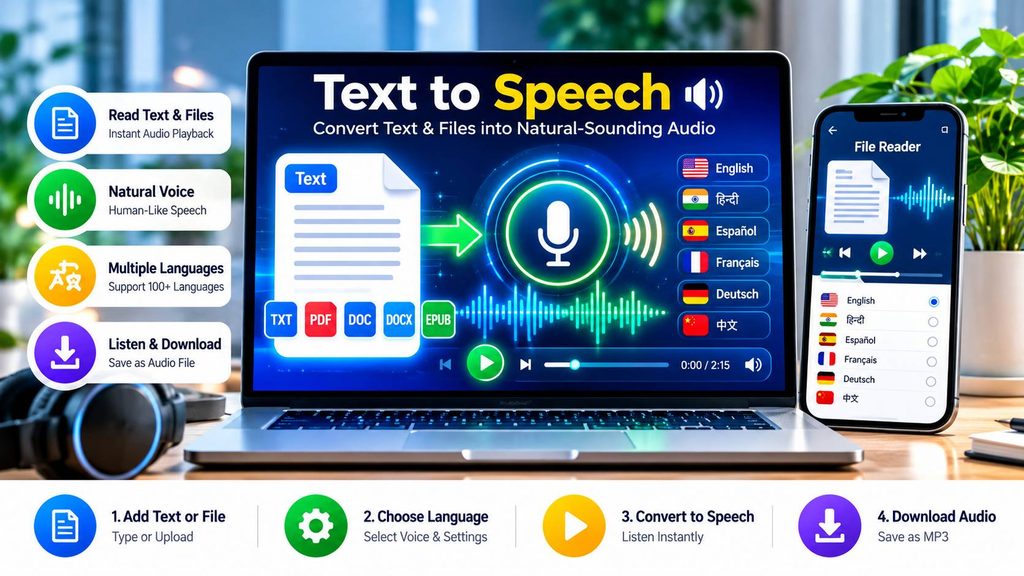
100% Free Text to Speech Online – Read Text and PDF Aloud
Reading long text on a screen can be tiring. Sometimes you want to hear an article, proofread your own writing by ear, or listen to a PDF while you work on something else. A free text to speech tool lets you paste text or import a file and hear it read aloud in your browser, with no software to install and no account to create. If you want to tidy up your text before listening, for example by fixing uppercase and lowercase letters, you can use our free Case Converter.
This guide explains what a text to speech tool does, what each part of the Aanamil Text to Speech tool is for, and how to use it step by step. You will also find tips for clearer listening, advice for phones, tablets, and computers, answers to common problems, and notes on handling your text carefully.
What Is a Text to Speech Tool?
A text to speech tool converts written words into spoken audio. You provide the text, choose a voice, and the tool reads it aloud. It is also called a text reader, a read aloud tool, or a speech synthesizer.
The Aanamil Text to Speech tool works right inside your browser. You can type or paste text, or import a text or PDF file, choose a language and voice, adjust the speed, and press Play Speech. You do not need desktop software, a technical background, or an account.
Features of the Aanamil Text to Speech Tool
Here are the main features at a glance.
- Free to use. There are no fees, no subscription, and no payment step.
- Import a text or PDF file with the “Choose File” button.
- Type or paste text in a large text box.
- Copy and Clear buttons for the text in the box.
- Language and voice selection from a dropdown list.
- Speed slider with a default of 1.0x.
- Play Speech and Stop buttons to start and end the reading.
- Download Text File and Print Text buttons.
- Works in the browser on laptops, desktops, tablets, and mobile phones, with nothing to install.
- No signup or login.
Tool Features Explained in Detail
Each part of the tool has a simple job. Here is what each one does.
Import Text or PDF File (Instant Play)
This area sits at the top of the tool. Click “Choose File” to select a text or PDF file from your device. Until you pick one, it shows “No file chosen.” It is the quickest way to hear a document without copying and pasting it by hand.
Enter, Paste, or Import Text
This is the main text box. Its hint reads “Type text here or upload a file above,” which describes your two options: write or paste your own words, or bring in a file. Short notes, long articles, and single sentences all work here.
Copy and Clear
Two small buttons sit above the text box. “Copy” copies the text so you can use it elsewhere. “Clear” empties the box so you can start again with new text.
Select Language & Voice
This dropdown lets you choose the language and voice for the reading. While it collects the voices available in your browser, it shows a loading message. Browsers provide these voices through the Web Speech API, which MDN Web Docs explains in its SpeechSynthesis documentation, and this is why the list can differ from one device to another. Once the list appears, pick a voice that matches the language of your text.
Speed Control
The slider changes how fast the text is read. It starts at 1.0x, which is a normal pace. Move it lower for careful listening or higher to get through familiar text faster.
Play Speech and Stop
“Play Speech” starts reading the text aloud. “Stop” ends the reading whenever you want, for example when you notice a mistake in your text or want to change the voice.
Download Text File
This button saves your text as a file on your device, which is useful when you have edited or cleaned up a passage and want to keep it.
Print Text
This button lets you print the text from the page, so you can read a paper copy while you listen.
How to Use the Text to Speech Tool: Step-by-Step Guide
The process is simple, although the voices you see depend on your browser and device.
- Open the tool. Use the Text to Speech tool on this page in a supported web browser.
- Add your text. Type or paste it into the text box, or click “Choose File” to import a text or PDF file.
- Choose a language and voice. Open the dropdown and select the voice you want. If it still says “Loading,” wait a moment for the list to appear.
- Set the speed. Move the slider to a pace that feels comfortable. Test a few sentences first, then adjust.
- Press Play Speech. The tool reads your text aloud.
- Stop when needed. Click “Stop” to end the reading.
- Save or print if you wish. Use “Download Text File” or “Print Text,” and “Clear” when you want to start over.
Reading PDFs and Text Files Aloud
Importing a file is helpful for articles, notes, study material, and reports that are already saved on your device. A few tips improve the result:
- Use files with selectable text. If you can highlight and copy words in your PDF, the tool is more likely to read it correctly.
- Scanned PDFs may not work. A scan is often only a picture of a page with no real text inside, so there may be nothing to read.
- Review the result. After importing, listen to the first part and check that the words come out as expected.
- Watch for clutter. Page numbers, headers, and footnotes can interrupt the flow when read aloud.
- Work in parts. If a very large file is slow, try one section at a time.
Tips for Clearer Listening
- Match the voice to the language. A voice for one language may read another language poorly.
- Try more than one voice. If a voice sounds unnatural, switch to another voice in the same language.
- Expect differences between devices. Each browser and device offers its own voices, so the same text can sound different on your phone and your laptop.
- Use correct punctuation. Commas and full stops create natural pauses, while text without punctuation sounds rushed.
- Fix typing mistakes. The tool reads exactly what is written, including errors.
- Spell out unusual abbreviations if a short form is read incorrectly.
When Is a Text to Speech Tool Helpful?
- Students can listen to notes, summaries, and reading material while revising.
- Writers and bloggers can proofread drafts by ear, which makes awkward sentences, missing words, and repeated phrases easier to notice.
- Professionals can listen to reports and emails while reviewing them.
- Language learners can hear sample words and sentences in different voices. Treat the result as a guide, because voices vary by device.
- Content creators can check how a script sounds before recording it.
- Everyday users can have an article or document read to them when they prefer listening, and can keep the page open while they do other tasks nearby.
Mobile, Tablet, and Desktop Compatibility
The Aanamil Text to Speech tool is designed to work properly on mobile phones, tablets, laptops, and desktop computers. The interface adapts to different screen sizes, so you can add text, choose a voice, change the speed, and listen comfortably on whichever device you use. As a mobile-friendly text to speech tool, it lets you listen directly on your phone without moving files to a computer first.
The tool works in modern web browsers on:
- Android phones and Android tablets
- iPhone and iPad
- Windows computers
- macOS computers
You do not need to install an app. Open the page in an up-to-date browser, add your text, and press Play Speech.
Common Problems and Troubleshooting
- The voice list says “Loading.” Wait a few seconds. If it does not appear, refresh the page or try another supported browser.
- There is no sound. Check your device volume, mute or silent settings, and speakers or headphones. Make sure the browser tab is not muted and a voice is selected.
- The voice sounds wrong. Choose a voice that matches the language of your text.
- A PDF does not read correctly. The file may be a scan without selectable text, or it may have unusual formatting. Try pasting the text directly into the box.
- Long text plays slowly or stops. Split it into smaller parts and play them one at a time.
- Download Text File or Print Text does not respond. Check your browser’s download and pop-up permissions, then try again.
If a problem continues, refresh the page, clear the text box, and try again with a smaller piece of text. Keep your browser up to date.
Privacy and Safety Considerations
The Aanamil Text to Speech tool works in your browser, and no signup or login is required. The voices used for reading come from your browser and device, and how a particular browser provides them can vary.
A few common-sense habits are worth following, especially with sensitive text:
- Avoid pasting private or confidential information on public or shared computers.
- Press “Clear” when you finish, and delete saved text files you no longer need.
- Some browsers may use online voice services, so avoid very sensitive text if you are unsure.
Frequently Asked Questions
Is the text to speech tool free to use?
Yes. You can use the tool for free, with no fees and no subscription.
How do I use the text to speech tool?
Type, paste, or import your text, choose a language and voice, set the speed, and press Play Speech.
Can I read a PDF aloud?
Yes. Use “Choose File” to import a text or PDF file. PDFs with selectable text work best, while scanned PDFs may not contain text the tool can read.
Which voices and languages are available?
The tool loads the voices available in your browser and device, so the list can differ from one device to another. Choose the voice that matches the language of your text.
Can I save or print my text?
Yes. Use “Download Text File” to save the text, or “Print Text” to print it.
Can I use it on my phone or tablet?
Yes. It works in supported browsers on Android, iPhone, Android tablets, and iPad, as well as on Windows and macOS computers.
Do I need to sign up or install anything?
No. The tool runs in your browser, so you do not need to create an account or install any software.
Why can’t I hear any sound?
Check your volume, mute settings, and speakers or headphones, then make sure a voice is selected and try again.
Conclusion
Listening can be a comfortable alternative to reading, whether you are proofreading, studying, or resting your eyes. With the free Aanamil Text to Speech tool, you can type, paste, or import text, choose a language and voice, adjust the speed, and listen right in your browser, with no signup and nothing to install.
Results depend on your text and on the voices your device provides, so test a short passage first and adjust the voice and speed until it sounds right. Use correct punctuation, keep long text in manageable parts, and clear sensitive text when you are done.