
Word Counter
Instantly count words, characters, sentences, paragraphs, and estimate reading time right inside your browser.
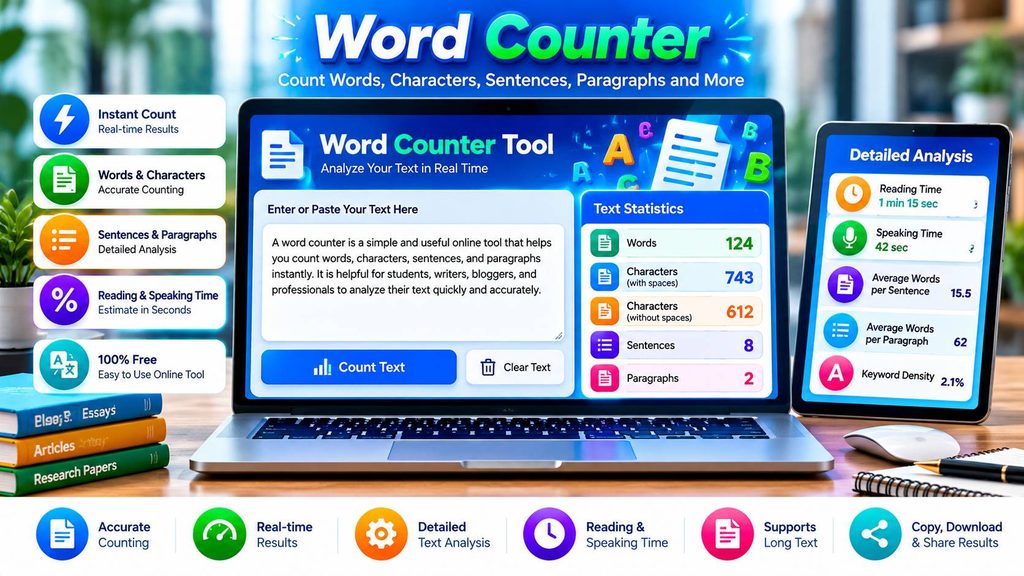
100% Free Word Counter Tool – Count Words and Characters Online
Whether you are writing an essay with a strict limit, preparing a social media caption, or checking the length of a blog post, one question comes up again and again: how long is this text? A free word counter answers it in a moment. You paste or type your text, and the tool shows the number of words, characters, sentences, and paragraphs, along with an estimated reading time and speaking time, right in your browser. There is no software to install and no account to create. After counting, you can also check your writing for mistakes with our free Grammar Checker.
This guide explains what a word counter does, what each number in the tool means, and how to count words online step by step. You will also find tips for accurate counting, advice for phones, tablets, and computers, answers to common problems, and notes on handling your text carefully.
What Is a Word Counter?
A word counter is an online tool that measures the length of your text. Instead of counting words by hand or relying on a word processor that you may not have open, you paste your text into a box and read the results.
The Aanamil Word Counter is a browser-based tool. It shows four counts (words, characters, sentences, and paragraphs) and two estimates (reading time and speaking time). You can then copy the text, download it as a TXT file, or clear the box and start again. You do not need desktop software, a technical background, or an account.
What the Aanamil Word Counter Measures
The tool shows its results in a row of boxes above the text area, followed by two time estimates. Here is what each one tells you.
Words
The total number of words in your text. This is the number most assignments, articles, and submissions refer to.
Characters
The total number of characters in your text. This matters for captions, messages, titles, and descriptions that have a character limit. Before you rely on this number for a limit, check whether the platform or institution counts characters with or without spaces, because rules differ.
Sentences
The number of sentences in your text. Sentence counts are usually based on punctuation, so unusual formatting, abbreviations, or missing full stops can change the result.
Paragraphs
The number of paragraphs in your text. Paragraph counts usually depend on line breaks, so a block of text without breaks counts as one paragraph.
Reading Time
An estimate of how long it takes to read the text silently. It helps you judge whether an article is a quick read or a longer one.
Speaking Time
An estimate of how long it takes to say the text aloud. It is useful for speeches, presentations, scripts, and voice-over work.
Counting rules can differ slightly between tools and programs, so a small difference from the number in your word processor is normal.
Features of the Aanamil Word Counter
Here are the main features at a glance. The next section explains how each part of the tool works.
- Free to use, with no signup or login.
- Four counts: words, characters, sentences, and paragraphs.
- Reading and speaking time estimates.
- Copy, download, or clear your text.
- Browser-based, with nothing to install.
Tool Features Explained in Detail
Each part of the tool has a simple job. Here is how each one works.
Type or Paste Your Text Below
This is the main text box. You can type directly or paste text from a document, email, web page, or message. Short phrases and long passages both work.
Instant Count Boxes
The four boxes above the text area are built to update as you add or remove text, so you can watch your length while you edit. The section above explains what each count means.
Reading Time
This box shows the estimated silent reading time. It is a guide rather than an exact measure, because people read at different speeds.
Speaking Time
This box shows the estimated time needed to say the text aloud, which is useful when planning a talk.
Copy Text
This blue button copies the text in the box so you can paste it into a document, email, or form. It saves you from selecting the text by hand.
Download TXT
This green button saves the text as a TXT file on your device. It is helpful when you want to keep a copy of the text you counted.
Clear
This red button empties the text box so you can start again with new text. It also helps when you want to remove text from the page after finishing, especially on a shared device.
How to Count Words Online: Step-by-Step Guide
The process is simple and takes only a few seconds.
- Open the word counter. Use the tool on this page in a supported web browser.
- Add your text. Type it into the box, or paste it from another source.
- Read the counts. Look at the boxes for words, characters, sentences, and paragraphs.
- Check the time estimates. Use Reading Time and Speaking Time to judge how long your text takes to read or say.
- Edit and recheck. Add, cut, or rewrite text and watch the numbers change until you reach the length you need.
- Copy or download. Click “Copy Text” to paste your text elsewhere, or “Download TXT” to save it as a file.
- Clear the box. Click “Clear” when you are done, or when you want to count something else.
Why Counting Words and Characters Matters
Length affects how your writing is judged, displayed, and received. These are some of the most common reasons people count.
- Essays and assignments. Teachers and exam boards often set a minimum or maximum word count.
- Applications and forms. Cover letters, personal statements, and online forms may limit length.
- Social media, messages, and descriptions. Many platforms limit characters for posts, captions, titles, and product descriptions.
- Blog posts and articles. Writers check length to plan structure and to match a brief from an editor or client.
- Speeches and presentations. Speaking time helps you fit your script into the time you have.
A Note on Word Count and Search Engines
Many people ask how long a web page should be to rank well. There is no ideal word count. Google’s guidance on helpful, reliable, people-first content encourages writing for readers instead of aiming for a specific length. Use the word counter to keep your text as long as it needs to be to answer the question well, and no longer.
Reading Time and Speaking Time Explained
Reading time and speaking time are estimates, not exact measurements. Reading speed changes with the reader, the topic, and the difficulty of the text. Speaking pace changes with the speaker, the audience, and the occasion.
A few practical points help:
- Treat the numbers as a guide. They are most useful for comparing one piece of text with another, and for longer passages rather than a few words.
- Rehearse important speeches. Read your script aloud once with a timer, because pauses, slides, and questions add time.
Tips for Accurate Counting
A few simple habits help you get a number you can trust.
- Paste only what you want to count. Titles, headings, references, and notes may or may not be included in a limit, so paste the exact section that counts.
- Check how the limit is counted. Institutions and platforms may treat hyphenated words, numbers, symbols, and spaces differently.
- Remove stray formatting. Extra spaces, page numbers, or odd line breaks from a source can affect counts.
- Recount after editing. Make a final count after your last change, not before.
- Keep a copy of your text. Save a copy before you make large cuts.
Who Can Benefit from a Word Counter?
A free word counter is useful for many people.
- Students can stay within essay and assignment limits.
- Writers and bloggers can plan articles and check length against a brief.
- Job seekers can keep cover letters, summaries, and application answers within limits.
- Social media managers can fit captions and posts into character limits.
- Speakers and presenters can use speaking time to plan a talk.
- Everyday users can check the length of a message, a review, or a form entry.
Mobile, Tablet, and Desktop Compatibility
You can access the Aanamil Word Counter through a compatible web browser on mobile phones, tablets, laptops, and desktop computers. The experience may vary by device and browser. This means you can check the length of your text directly on your phone without moving it to a computer first.
You can open the tool in a compatible browser on:
- Android phones and Android tablets
- iPhone and iPad
- Windows computers
- macOS computers
You do not need to install an app. Open the page in an up-to-date browser, type or paste your text, and read the results.
Common Problems and Troubleshooting
Most issues are easy to fix.
- The counts did not change. Make sure the text is in the box. Refresh the page and try again if the problem continues.
- My number is different from my word processor. Tools count some items differently, such as hyphenated words, numbers, and symbols. Check which count the official limit uses.
- The sentence count looks wrong. Sentence counts usually depend on punctuation. Check for missing full stops, abbreviations, or lists.
- The paragraph count looks wrong. Paragraph counts usually depend on line breaks. Add or remove breaks to match your text.
- Copy Text does not work. Your browser may restrict copying. Select the text in the box and copy it manually.
- Download TXT does not respond. Check your browser’s download and pop-up permissions, then try again.
If a problem continues, refresh the page, clear the box, and try again with a smaller piece of text. Keep your browser up to date.
Privacy and Safety Considerations
The Aanamil Word Counter is a browser-based tool, and no signup or login is required. As with any online tool, a few common-sense habits are worth following, especially with sensitive text:
- Avoid pasting private or confidential information, especially on public or shared computers.
- Click “Clear” when you finish, and delete downloaded text files you no longer need.
- Share your text only with the people who need it.
- Keep your browser and operating system up to date.
Frequently Asked Questions
Is the word counter free to use?
Yes. You can use the tool for free, with no fees and no subscription.
How do I count words online?
Type or paste your text into the box and read the number of words shown above it. The step-by-step guide above explains each stage.
What does the tool count?
It shows the number of words, characters, sentences, and paragraphs, along with an estimated reading time and speaking time.
Why is my count different from Microsoft Word or Google Docs?
Different programs count some items differently, such as hyphenated words, numbers, and symbols. Small differences are normal. If an official limit applies, check it with the program or platform that will judge your text.
Can I save my text?
Yes. Use “Copy Text” to copy it, or “Download TXT” to save it as a TXT file.
Can I use it on my phone or tablet?
Yes. You can use it through a compatible browser on Android, iPhone, Android tablets, and iPad, as well as on Windows and macOS computers. The experience may vary by device and browser.
Do I need to sign up or install anything?
No. The tool runs in your browser, so you do not need to create an account or install any software.
Is there an ideal word count for SEO?
No. Google does not set a preferred word count. Write as much as it takes to help your reader, and use the counter to check that your text meets any limit you have been given.
Conclusion
Knowing the length of your text helps you meet limits, plan your writing, and save time. With the free Aanamil Word Counter, you can paste your text, see the words, characters, sentences, and paragraphs at a glance, check the reading and speaking time, and then copy or download the text, all in your browser with no signup and nothing to install.
Results depend on how your text is formatted, so always confirm strict limits with the program or platform that will judge your work. Keep a copy of your original text, recount after your final edit, and clear sensitive text when you are done.