
Case Converter
Easily convert your text to Uppercase, Lowercase, Title Case, Sentence Case, and more instantly inside your browser.
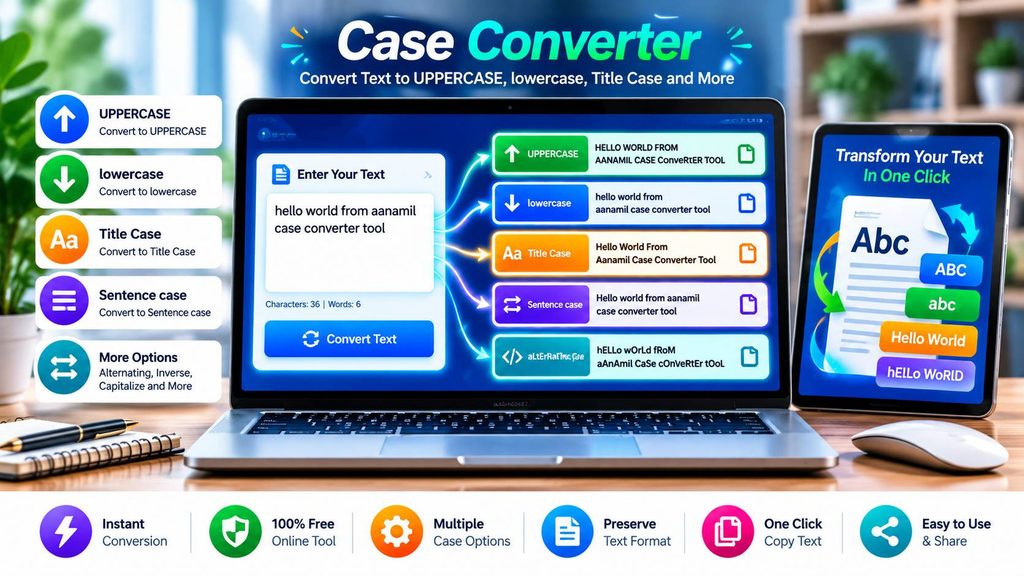
100% Free Case Converter – Change Text Case Online
We have all typed a whole paragraph with Caps Lock on by mistake, or copied text that came in all capitals and needed to look normal again. Retyping it by hand wastes time. A free case converter changes the capitalization of your text in one click, right in your browser, with no software to install and no account to create. Once your text looks right, you can also check its length with our free Word Counter.
This guide explains what a case converter does, what each text case means, and how to change text case online step by step. You will also find practical examples, tips for avoiding mistakes, advice for phones, tablets, and computers, answers to common problems, and notes on handling your text carefully.
What Is a Case Converter?
A case converter is a tool that changes the capital and small letters in a piece of text. Instead of editing every letter yourself, you paste the text, choose a case style, and the tool does the rest. It is also called a text case changer, a capitalization tool, or an uppercase to lowercase converter.
The Aanamil Case Converter is a browser-based tool. You paste or type your text, click one of the case buttons, and then copy the result, download it as a TXT file, or clear the box and start again. You do not need desktop software, a technical background, or an account.
Text Cases Explained
Different situations call for different capitalization. Here are the five styles available in the tool, with a simple example of each. For background on how capitalization works in writing, you can read this overview of letter case.
UPPERCASE
Every letter becomes a capital letter. For example, “hello world” becomes “HELLO WORLD.” Uppercase suits short labels, warnings, acronyms, and headings that need to stand out. Long paragraphs in capitals are harder to read, so use it sparingly.
lowercase
Every letter becomes a small letter. For example, “Hello World” becomes “hello world.” Lowercase is useful when you want plain, consistent text, such as when you clean up copied content. Names and acronyms lose their capitals, so check them afterward.
Title Case
Title case capitalizes words so that text suits a heading. For example, “the quick brown fox” becomes “The Quick Brown Fox.” It is common for headlines, article titles, book names, and section headings. Style guides disagree on small words such as “of” or “and,” so review how they appear and adjust them to the style you follow.
Sentence case
Sentence case capitalizes the first letter of each sentence and uses small letters for the rest. For example, “THIS IS A TEST. ANOTHER LINE.” becomes “This is a test. Another line.” It is the natural choice for paragraphs, emails, captions, and notes, and a quick fix for text typed with Caps Lock on. Names and acronyms in the middle of a sentence may need to be restored by hand.
InVeRsE cAsE
Inverse case reverses the capitalization of each letter, so capitals become small letters and small letters become capitals. For example, the original text “Hello World” becomes “hELLO wORLD.” It is mostly used for fun or design effects, so try a short sample first to see how it looks.
Features of the Aanamil Case Converter
Here are the main features at a glance.
- Free to use. There are no fees, no subscription, and no payment step.
- Text box for typing or pasting. Enter or paste the text you want to convert.
- Five case options. UPPERCASE, lowercase, Title Case, Sentence case, and InVeRsE cAsE.
- Copy Text, Download TXT, and Clear buttons to copy, save, or empty the text.
- Browser-based use, with nothing to install.
- No signup or login.
Tool Features Explained in Detail
Each part of the tool has a simple job. Here is what each one does.
Enter or Paste Your Text
This is the main text box. Its hint reads “Type or paste your text here…” You can type directly or paste text from a document, email, web page, or message. Short phrases and long passages both work.
UPPERCASE, lowercase, Title Case, Sentence case, and InVeRsE cAsE
These five buttons sit under the text box. Click the style you want and look at the result. If you are not happy with it, try a different button. Because lowercase removes existing capitals, keep a copy of your original text if you may need it later.
Copy Text
This blue button copies the text so you can paste it into an email, document, social media post, or any other app. It saves you from selecting the text by hand.
Download TXT
This green button saves the text as a TXT file on your device. It is helpful when you want to keep the converted text or send it as a simple file.
Clear
This red button empties the text box so you can start again with new text. It also helps when you want to remove text from the page after finishing, especially on a shared device.
How to Convert Text Case Online: Step-by-Step Guide
The process is simple and takes only a few seconds.
- Open the case converter. Use the tool on this page in a supported web browser.
- Add your text. Type it into the box, or paste it from another source.
- Choose a case. Click the case button that fits your purpose.
- Review the result. Check names, abbreviations, and the start of each sentence. If it is not right, click a different case button.
- Copy or download. Click “Copy Text” to paste it elsewhere, or “Download TXT” to save it as a file.
- Clear the box. Click “Clear” when you are done, or when you want to convert something else.
When to Use Each Case
Capitalization affects how your writing looks and how easy it is to read. These examples show where each style fits best.
- Emails and messages. Use sentence case for a natural, friendly look.
- Headlines and titles. Use title case for blog posts, reports, presentations, and book or video titles.
- Labels and warnings. Use uppercase for short phrases that need attention, such as “FRAGILE” or “NO ENTRY.”
- Copied content. Use lowercase or sentence case to calm down text that arrived in all capitals.
- Social media and captions. Sentence case reads most naturally, while uppercase works for one or two emphasized words.
Tips for Better Results
A few simple habits help you avoid common mistakes.
- Check proper names. Converting to lowercase or sentence case may change names, places, and brand names that should keep their capitals. Correct them after converting.
- Watch acronyms. Short forms like “USA” or “PDF” may need to be restored to capitals.
- Review title case. Decide whether small words should be capitalized and adjust to match your style guide.
- Use sentence case for long text. It is easier on the eyes than all capitals.
- Keep your original. Save the starting text somewhere safe before you convert.
- Proofread the final text. A case converter changes letters, not spelling, grammar, or meaning.
- Paste clean text. Extra spaces or odd line breaks from the source may remain in the text, so tidy them yourself.
Who Can Benefit from a Case Converter?
A free case converter is useful for many people.
- Students can fix capitalization in notes, essays, and headings.
- Writers and bloggers can format titles and headings consistently.
- Office workers can clean up copied reports, spreadsheet text, and emails.
- Social media managers can prepare captions and titles quickly.
- Developers and designers can tidy sample text and labels.
- Everyday users can fix text typed with Caps Lock on without retyping it.
Mobile, Tablet, and Desktop Compatibility
You can access the Aanamil Case Converter through a compatible web browser on mobile phones, tablets, laptops, and desktop computers. The experience may vary by device and browser. This means you can fix text directly on your phone without moving it to a computer first.
You can open the tool in a compatible browser on:
- Android phones and Android tablets
- iPhone and iPad
- Windows computers
- macOS computers
You do not need to install an app. Open the page in an up-to-date browser, add your text, and click a case button.
Common Problems and Troubleshooting
Most issues are easy to fix.
- The text did not change. Make sure you entered text in the box and clicked one of the case buttons. Refresh the page and try again if the problem continues.
- Names or acronyms look wrong. A case converter cannot tell which words are names or acronyms, so correct them by hand afterward.
- The result is not what I expected. Try another case button, or paste your original text again and start over.
- Title case looks off. Style guides treat small words differently. Adjust the words that do not match your style.
- Copy Text does not work. Your browser may restrict copying. Select the text in the box and copy it manually.
- Download TXT does not respond. Check your browser’s download and pop-up permissions, then try again.
If a problem continues, refresh the page, clear the box, and try again with a smaller piece of text. Keep your browser up to date.
Privacy and Safety Considerations
The Aanamil Case Converter is a browser-based tool, and no signup or login is required. As with any online tool, a few common-sense habits are worth following, especially with sensitive text:
- Avoid pasting private or confidential information, especially on public or shared computers.
- Click “Clear” when you finish, and delete downloaded text files you no longer need.
- Share converted text only with the people who need it.
- Keep your browser and operating system up to date.
Frequently Asked Questions
Is the case converter free to use?
Yes. You can use the tool for free, with no fees and no subscription.
How do I change text case online?
Paste or type your text, click the case button you want, review the result, and then copy or download it.
Which case options are available?
You can convert text to UPPERCASE, lowercase, Title Case, Sentence case, and InVeRsE cAsE.
How do I convert uppercase to lowercase?
Paste your text and click the lowercase button. If you want normal paragraph capitalization instead, use Sentence case.
What is the difference between title case and sentence case?
Title case capitalizes words for headings and titles. Sentence case capitalizes only the first letter of each sentence, which suits paragraphs and messages.
Can I save the converted text?
Yes. Use “Copy Text” to copy it, or “Download TXT” to save it as a TXT file.
Can I use it on my phone or tablet?
Yes. You can use it through a compatible browser on Android, iPhone, Android tablets, and iPad, as well as on Windows and macOS computers. The experience may vary by device and browser.
Do I need to sign up or install anything?
No. The tool runs in your browser, so you do not need to create an account or install any software.
Will the tool fix my spelling or grammar?
No. It changes capitalization only, so proofread your text after converting it.
Conclusion
Fixing capitalization does not have to mean retyping your text. With the free Aanamil Case Converter, you can paste your text, switch between UPPERCASE, lowercase, Title Case, Sentence case, and InVeRsE cAsE, and then copy or download the result, all in your browser with no signup and nothing to install.
Results depend on your text, so always review names, acronyms, and titles after converting. Keep a copy of your original, choose the style that fits your purpose, and clear sensitive text when you are done.