
Add Page Numbers to PDF Online
Free page number adder: Page X of Y, Roman numerals, Bates numbers, custom text. Works in your browser, no upload.
Page Number Settings
Note: PDF standard fonts support Latin characters only (no Hindi or other scripts).
Process PDF
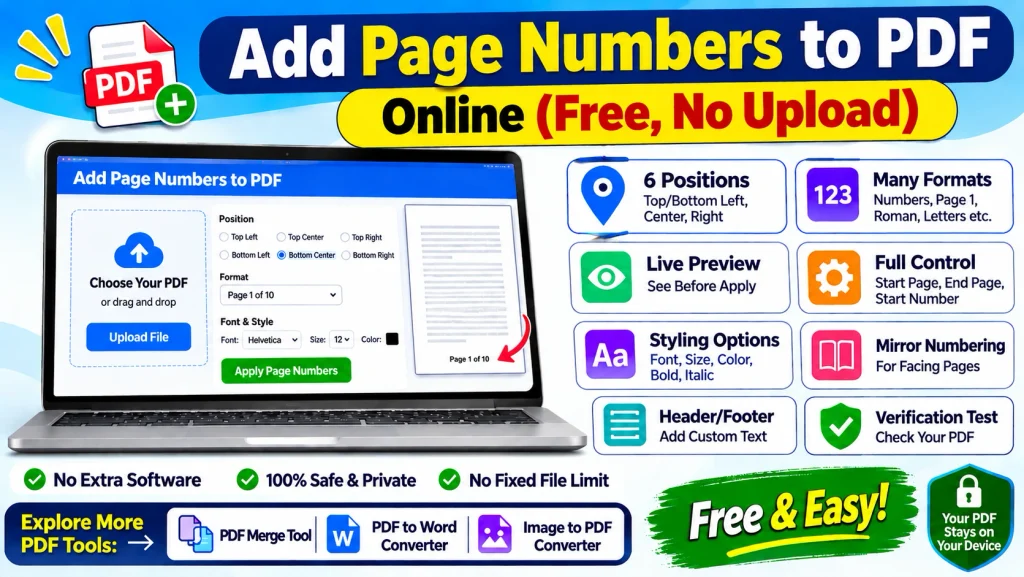
Use the free tool: Add Page Numbers to PDF Online – choose your file, pick a format and download. Your PDF is not uploaded to any server.
Add Page Numbers to PDF Online (Free, No Upload)
You can add page numbers to a PDF online in a few clicks, without installing anything. Numbered pages make contracts, theses, business reports and e-books easier to read, print, review and cite.
PDF files have a fixed layout, so numbers do not appear automatically like they do in a word processor. This tool places them for you, using the format, position and page range you choose, and gives you a new numbered copy to download.
What This PDF Page Number Tool Can Do
- 6 positions: top or bottom, left, center or right.
- Many formats: plain numbers, “Page 1”, “Page 1 of 10”, Roman numerals, letters, Bates-style numbers and your own custom text.
- Live preview: see the numbers on your page before you apply them.
- Page control: choose a start page, an end page, a start number and pages to skip.
- Styling: font (Helvetica, Times or Courier), size, color, bold, italic and margin.
- Book-style layout: mirror the numbers on facing pages.
- Header or footer text: add a line such as “Confidential” next to your numbers.
- Any page size: A4, US Letter and custom sizes, including PDFs that mix sizes or have rotated pages. Numbers stay upright.
- Verification test: check every numbered page and see a clear PASS or FAIL.
How to Add Page Numbers to PDF Online: Step by Step
- Choose your PDF. Tap the upload box or drag and drop your file. A preview appears.
- Pick a position and format. For example, Bottom Center with plain numbers.
- Adjust the details. Set the start number, page range, font size, color and margin. Add a prefix or suffix if you need one.
- Check the live preview. Use Previous and Next to look at other pages.
- Click Apply Page Numbers.
- Click Download Numbered PDF. Your file is saved with “_numbered” added to the original name.
- Optional: click Run Verification Test to confirm the numbers were added where you expected.
Explore More PDF Tools
- PDF Merge Tool – combine several PDFs into one file.
- PDF to Word Converter – turn a PDF into an editable Word document.
- Image to PDF Converter – convert photos and scans into a PDF.
Tip: if your document is made of several files, merge them first, then add the page numbers once so the sequence runs through the whole document.
Page Number Formats
Different documents need different numbering. You can add numbering to a PDF in these styles:
- Plain numbers (1, 2, 3): clean and simple, good for most documents.
- Page 1, Page 2: common in formal reports.
- Page 1 of 10: shows readers how long the document is. The total is the last number in your sequence, so if you skip a cover page the count matches the numbered pages.
- Roman numerals (I, II, III or i, ii, iii): often used for front matter and tables of contents.
- Letters (A, B, C or a, b, c): useful for appendices and exhibits.
- Bates-style numbers: fixed-length digits such as 000001, with an optional prefix like ACME-. Often used for legal and business records.
- Custom text: type your own pattern with {n} for the number, {total} for the last number and {page} for the PDF page, for example “Doc {page}/{total}”.
Add Roman Numerals to PDF Pages
Theses and manuals often use Roman numerals for the front pages and normal numbers for the main text. You can do this in two passes:
- Choose lowercase Roman numerals, set the Start Page to 1 and the End Page to the last front-matter page, then apply and download.
- Upload the downloaded file again, choose plain numbers, set the Start Page to the first main page and the Start Number to 1, then apply and download.
Skip Pages or Start From Any Number
Most documents should not show a number on the cover page. There are two easy ways to handle that:
- Set the Start Page to 2 and keep the Start Number at 1, so numbering begins on the second page.
- Type the pages in Skip Pages, for example
1, 3, 5-7.
By default, skipped pages do not use up a number. If you want them to count in the sequence, tick “Skipped pages also use a number”.
Add Page Numbers to PDF Online Without Acrobat
You do not need Adobe Acrobat or any installed software to number a PDF. Open the tool in a modern browser, add your file, apply the numbers and download the result. It is a quick option when you just need clean page numbers and nothing else.
Add Header or Footer Text With Your Page Numbers
Besides the number itself, you can add a second line of text at any of the six positions. Use it for a document title, a draft label or “Confidential”. This text can also use {n}, {total}, {page} and {pages} (the total page count of the PDF).
Privacy: Your PDF Stays on Your Device
Contracts, invoices and personal records are sensitive. This tool reads and edits your PDF inside your browser, so the file does not need to be uploaded to an external server for processing.
Tips for Best Results
- Use a margin that keeps numbers clear of existing headers and footers. 30 points works well for most pages.
- A font size of 10 to 12 is easy to read without distracting from the content.
- Keep your original file. The numbers become part of the page in the new copy.
Frequently Asked Questions
Is it free to add page numbers to a PDF online with this tool?
Yes. It is free, needs no sign-up and no installation. You only need a modern web browser.
Does it change my original PDF?
No. The tool creates a new numbered copy and your original file stays as it is.
Is there a file size limit?
The tool does not set a fixed limit. Very large PDFs depend on the memory of your device, so they may take longer or fail on older phones and computers.
Can I remove the page numbers later?
Not easily. The numbers are drawn onto the pages of the new file. If you may need an unnumbered version, keep your original PDF.
Can I use it for PDFs in other languages?
Yes for the document itself: your PDF can be in any language, and its content is left untouched. The page numbers, prefix, suffix and extra text must use Latin characters (English letters, digits and common symbols), because PDF standard fonts support only those. Scripts such as Devanagari, Arabic or Chinese cannot be used for the numbers.
What if my PDF is password-protected?
Remove the password first in the program you use to open it, then upload the unlocked file.
Conclusion
You do not need heavy software or a file upload to add page numbers to a PDF online. Choose a format, preview the result, adjust the range and download a clean numbered copy. Scroll back to the top and try the tool on your own PDF.
Official Reference
Creating helpful, reliable, people-first content – Google Search Central
Add Page Numbers to PDF Online
Free online tool to add page numbers to PDF files in your browser. Choose from Page X of Y, Roman numerals, Bates numbers or custom text, set the position, skip pages and preview the result. No upload and no sign-up needed.
Price Currency: USD
Operating System: Windows, macOS, Linux, Android, iOS (works in any modern web browser)
Application Category: UtilitiesApplication