
Split PDF
Split a PDF into separate files, extract pages or delete pages right inside your browser. Pick pages, ranges, bookmarks, file size and more.
📁 Drag & Drop your PDF file here or
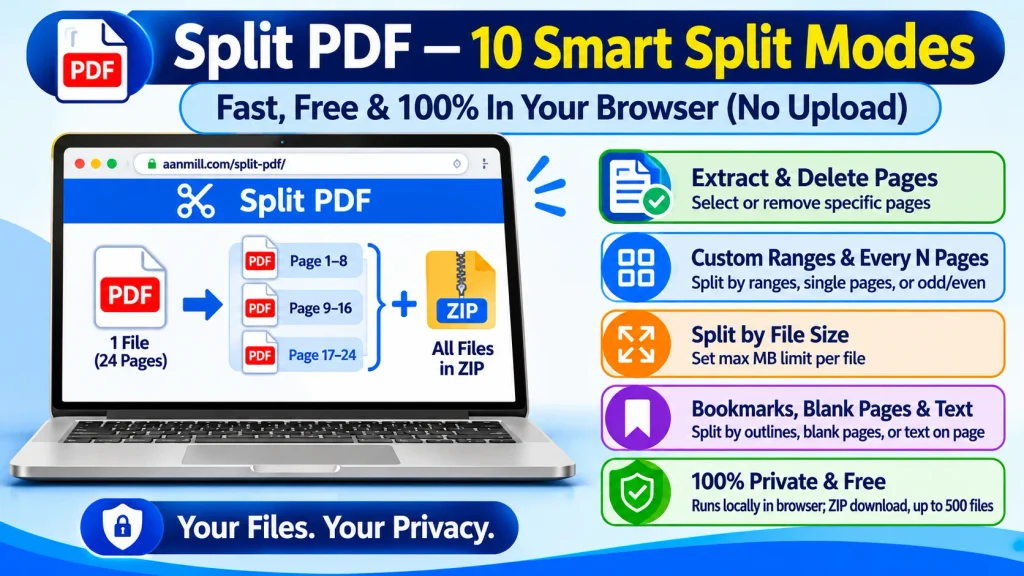
Split PDF: Extract Pages, Remove Pages and Split PDF Files Online for Free
Need to split a PDF into smaller files, or pull out just a few pages? Our free tool lets you split PDF files right in your browser. Open a file, pick how you want to cut it, and download the result as one PDF or as a ZIP of several files. There is nothing to install and no account to create.
You can extract pages, remove pages, split by page range, cut every N pages, separate every page, or even split by file size, bookmarks, blank pages or a word on the page.
What Does It Mean to Split a PDF?
Splitting a PDF means turning one document into one or more new documents. Sometimes you keep only the pages you need. Sometimes you cut a long file into chapters or into smaller parts that are easier to send. The original file is never changed. The tool builds new files from copies of your pages.
Ways to Split a PDF with This Tool
Choose a split mode from the menu after you add your PDF:
- Extract selected pages: click the pages you want and save them together as one new PDF.
- Delete selected pages: click the pages you do not want, and save everything else.
- Custom page ranges: type ranges such as 1-3, 5, 8- and get one PDF per range, or one combined PDF.
- Split every N pages: cut the document into files with the same number of pages.
- Every page as a separate PDF: one file for each page.
- Odd or even pages: keep the odd pages, the even pages, or both as two files.
- By bookmarks (chapters): start a new file at each top-level bookmark.
- By file size: keep every file under a size you choose, such as 5 MB.
- On blank pages: use blank pages as separators and drop them from the results.
- By text on the page: start a new file at every page that contains a word or phrase, such as “Invoice No”.
How to Split a PDF Online
- Press Choose PDF File or drag your PDF into the tool.
- Pick a split mode from the menu.
- Set the options for that mode, for example the pages to select or the number of pages per file.
- Type an output file name if you want something other than the default.
- Press the main button, such as Extract Selected Pages or Split PDF.
- Download your file. When the result is several files, download them one by one or press Download All (ZIP).
Open the downloaded file and check it before you send or upload it.
Extract Pages from a PDF
To extract pages from a PDF, keep the Extract selected pages mode. The tool shows a thumbnail of every page. Click a page to select it, and it gets a green border. Selected pages are saved in the original order as a single new PDF.
Selecting many pages is quick:
- Shift + click selects a whole run of pages between two clicks.
- Select All, Deselect All and Invert change the whole selection at once.
- Select by number lets you type 1-3, 5, 8- and press Select.
The extract button stays disabled until at least one page is selected, so you cannot create an empty file by mistake.
Remove Pages from a PDF
To remove pages from a PDF, choose Delete selected pages. Click the pages you want to get rid of, and they are outlined in red. The tool saves a new PDF with all the other pages. It will not let you delete every page, because a PDF needs at least one.
Split PDF by Page Range
Choose Custom page ranges to split a PDF by page range. Separate ranges with commas:
- 2 takes only page 2.
- 1-3 takes pages 1, 2 and 3.
- 8- takes page 8 through to the last page.
- 5-1 takes pages 5, 4, 3, 2 and 1 in reverse order.
- 1-3, 5, 8- creates three files: pages 1 to 3, page 5, and page 8 to the end.
Use the Output option to get a separate PDF for each range, or one PDF that contains all the ranges.
Split PDF into Multiple Files
To split a PDF into multiple files, you have several choices.
Every N pages. Enter a number and the document is cut into equal parts. A 20-page file with 5 pages per file gives four files. The last file can be shorter.
Every page as a separate PDF. Handy for scanned bundles where each sheet is a different document.
Odd or even pages. Useful when you want to print or review half of a document first.
When more than one file is created, each appears in a list with its own Download button, and you can download them all together as a ZIP.
Split a PDF by Size, Bookmarks, Blank Pages or Text
By file size. Enter the largest size you want per file, in MB. The tool fills each file with as many pages as fit under that limit. A single page that is larger than the limit stays in a file of its own. This is a good way to prepare a big PDF for an upload form or email with a size limit. If the pages themselves are heavy, you can also shrink the results with our PDF Compressor.
By bookmarks. Many long reports and books store a clickable table of contents. This mode uses the top-level bookmarks, so each chapter becomes its own file, named after its bookmark. If the PDF has no bookmarks, the tool tells you and you can try another mode.
On blank pages. Some scanners leave a blank sheet between documents. This mode finds those blank pages, uses them as dividers and removes them. Use the Scanned setting if your blank pages have faint marks or noise.
By text on the page. Type a word or phrase, such as Invoice No, and a new file starts at every page that contains it. Any pages before the first match become their own file. This works for PDFs that contain real text. Scanned pages that are only pictures have no text to search.
When Should You Split a PDF?
- Share only what matters. Send one chapter or one contract section, not the whole document.
- Meet upload limits. Portals for jobs, schools and applications often limit file size or want documents separately.
- Separate scanned bundles. Turn one long scan of mixed paperwork into separate files.
- Organize records. Cut a yearly statement, tax pack or invoice batch into the pieces you need.
- Remove private or unneeded pages. Delete pages before you share a document.
- Prepare for printing. Print only the pages you need, or only odd or even pages.
Tips for Better Results
- Check the page count first. The tool shows the number of pages and the file size as soon as you add your PDF.
- Name the output clearly. The file name you type becomes the start of every created file name.
- Review the result. Open the new PDF and scroll through it before you send it.
- Keep the original. Your source file stays untouched, so you can always start again.
- Need to put pieces back together? Use our Merge PDF tool to combine files again, in any order.
- Starting from photos? Turn pictures into a PDF with our Image to PDF converter and then split it.
Troubleshooting
The file says it is password protected. The tool cannot split locked PDFs. If you are allowed to, remove the password in a PDF reader, save a copy and add that copy.
The file could not be read. The PDF may be damaged. Try opening it on your device first, or download or export it again.
The page previews do not appear. Previews are a convenience. If they fail to load, pages show as numbers and you can still select them. Bookmark, blank page and text modes need previews, so refresh the page to try again.
The text search finds nothing. If your PDF is a scan, the pages are pictures and contain no searchable text. Try splitting by page range or every N pages instead.
The text box is empty. If you choose By text on the page and leave the text box empty, the tool asks you to type the word or phrase first. Type the text that should start each new file, then press Split PDF again.
The tool is slow on my phone. Everything runs on your device, so very large files can take longer, especially on phones. Close other tabs or try a smaller file.
I want to split several PDFs. The tool splits one PDF at a time. Use Choose Another PDF to start a new file.
Is It Safe to Split a PDF Online?
Splitting happens inside your web browser, on your own device. Your PDF is not uploaded to our servers to create the new files. That is helpful for documents such as contracts, statements and certificates. As with any online tool, avoid handling sensitive files on a shared or public computer, and close the page when you finish.
Frequently Asked Questions
Is this PDF splitter free?
Yes. You can split PDF files without paying, signing up or entering an email address.
How do I split a PDF into multiple files?
Choose a mode such as Custom page ranges, Split every N pages or Every page as a separate PDF, press Split PDF, and download the files one by one or as a ZIP.
How do I extract specific pages from a PDF?
Use Extract selected pages, click the pages you want, and press Extract Selected Pages. You can also type the page numbers, such as 2, 5, 8-10, and press Select.
How do I remove pages from a PDF?
Choose Delete selected pages, click the pages you want to remove, and press Delete Selected Pages. All other pages are saved in a new PDF.
Can I split a PDF by file size?
Yes. Choose By file size and enter the largest size you want for each file, in MB.
Are my files uploaded to a server?
No. The new PDF files are created in your browser on your own device.
Can I split a password-protected PDF?
No. Locked PDFs cannot be split. Remove the password in a PDF reader first, if you are permitted to.
Will splitting reduce the quality of my pages?
The pages are copied into the new files rather than turned into pictures, so text and graphics stay as they were.
Can I split a PDF on my phone?
Yes. The tool works in modern mobile browsers. Very large files may be slow on a phone.
How many files can I create at once?
Up to 500 files in a single split.
Final Thoughts
A good way to split a PDF should be flexible, quick and clear. With this free tool you can extract pages, remove pages, split by page range or size, and cut a document into as many files as you need, all without signing up. Try the splitter now, and if you need a smaller file afterwards, the PDF Compressor is one click away.
Learn more: To read about the PDF format itself and its ISO standards, visit the PDF Association.
Split PDF – Extract Pages & Split PDF Files Online Free
Free online Split PDF tool that splits a PDF into separate files, extracts or removes pages, and splits by page range, size, bookmarks, blank pages or text. Works in your browser with no signup required.
Price Currency: USD
Operating System: Windows, macOS, Linux, Android, iOS
Application Category: UtilitiesApplication